
Companion course
Source Control with GitHub: Web, Command Line and VS Code
Compator
Executive Summary
The purpose of this document is to teach a beginner how to keep a software project under source control with Git and GitHub, using the code from the Draughts AI course series as the worked example. The course is standalone: it explains everything it uses, and the example code can be taken from the course downloads without having followed the other courses. Every task is shown three ways, on the GitHub website, at the command line and in VS Code, so that learners can use whichever suits the moment. The scope covers repositories, commits, branches, pull requests, merge conflicts, undoing mistakes, tags, and deploying from GitHub to an Apache2 server; GitHub Actions, organisations and team permissions are out of scope.
Every command-line step in the course was run before the course was written, against a repository standing in for GitHub, and the deployment steps were run on Ubuntu 24.04 with Apache2; the outputs shown are copied from those runs. The website and VS Code steps follow GitHub's and Microsoft's documentation as it stood in October 2026, and the course points out where those labels may change. The matters assessed are whether a beginner can put each of the four course projects on GitHub, work on them safely from more than one place, and update a live server without losing its saved results. Sources are listed in the appendix.
Module 0: Before You Start
What source control is for
Have you ever saved files called app-final.py, app-final-2.py and app-really-final.py? Source control replaces that with something much better. It records every change you choose to save, with a note saying why, and lets you look back at any earlier version, see exactly what changed and when, undo a mistake, try an idea without risking working code, and share your work with other people or another computer.
Git and GitHub are different things
Git is free software that runs on your own computer. It does the recording. It works without the internet
GitHub is a website that stores copies of Git projects online. It adds a web editor, a way to review changes before accepting them, and a safe place to keep everything if your computer fails
You can use Git without GitHub, but GitHub without Git is limited to the web editor. This course uses both.
Three ways to do the same job
Every task in this course is shown three ways.
| Way | Good for |
|---|---|
| The GitHub website | Quick edits from any computer, reviewing and merging changes, and settings |
| The command line | Exact control, servers (which have no screen), and scripts |
| VS Code | Everyday work, because it shows changes visually as you edit |
None is better than the others. Most developers use all three, and by the end you will too.
The example project
The course uses the draughts game from "Building an AI Draughts Game for the Web" and its three follow-on courses. If you have not followed those courses, download the course code from the course materials. Each course's zip file holds one project folder.
| Course | Project folder | Repository you will create |
|---|---|---|
| Course 1: Building an AI Draughts Game | draughts | draughts |
| Course 2: The AI Coach | draughts-coach | draughts-coach |
| Course 3: The AI Learns | draughts-learn | draughts-learn |
| Course 4: An Opponent That Adapts | draughts-adapt | draughts-adapt |
Each project gets its own repository, because each is a separate application that is tested and deployed on its own. Course 1 is the worked example in Modules 3 to 9, and Module 10 uses the other three for practice, creating one repository each way.
What you need
A computer running Windows, macOS or Linux, with VS Code installed
An email address, for your GitHub account
For Module 9 only, the Ubuntu server with Apache2 from Course 1
Module 1: The Ideas Behind Git
Five ideas are worth understanding before you type anything.
1. Repository
A repository, or repo, is a project folder that Git is looking after. Git keeps its records in a hidden folder inside it called .git. Delete that folder and the project becomes an ordinary folder again; never edit it by hand.
2. Commit
A commit is a saved snapshot of the project, with a short message explaining the change, the author's name and the time. Each commit has a unique ID, a long string of letters and numbers usually shortened to its first seven characters, such as ea8ffaf. Commits are made deliberately, when a piece of work makes sense on its own. Saving a file in VS Code does not commit it.
3. The staging area
Before committing, you choose which changes go into the commit by staging them. This lets you make one tidy commit for one change even if you have edited several things.
Figure 1 shows the three places your work lives on your computer, GitHub alongside, and the commands that move work between them.
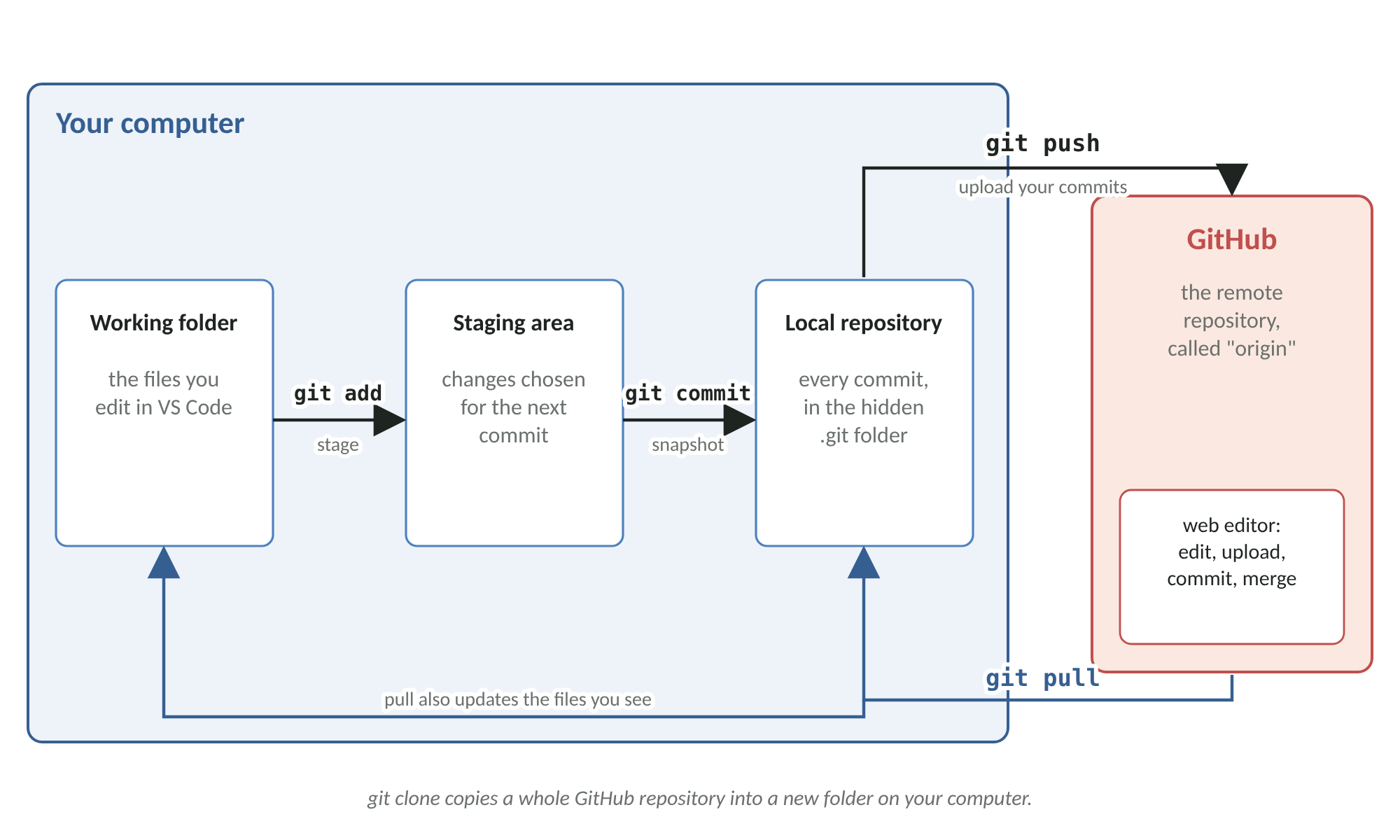
Figure 1: Where your work lives, and the Git commands that move it between those places.
4. Remote
A remote is a copy of the repository somewhere else, usually on GitHub. By convention the main remote is called origin. You push your commits to it, and pull other people's commits, or your own from another computer, from it. A clone is a complete copy of a remote repository, history and all.
5. Branch
A branch is a separate line of commits, so you can work on an idea without disturbing the main version. The main version lives on a branch called main. When the idea works, you merge the branch back. Module 6 covers branches in detail.
Check your progress
Explain to someone else the difference between saving a file, committing it and pushing it.
Module 2: Setting Up
Part A: A GitHub account
Go to https://github.com and sign up for a free account
Choose a username carefully: it appears in the address of every repository you create
Turn on two-factor authentication in your account settings. It protects your code if your password is ever stolen
Part B: Install Git
Windows: download Git for Windows from https://git-scm.com/download/win and install it with the default options
macOS: open Terminal and type
git --version. If Git is not installed, macOS offers to install Apple's Command Line Tools, which include itUbuntu Linux: type
sudo apt install git
Check it worked by typing git --version in a terminal. Any recent version will do; this course was tested with version 2.43.
Part C: Tell Git who you are
Every commit records an author. Set your name and email once on each computer. Use the email address of your GitHub account, so GitHub can link your commits to you.
git config --global user.name "Your Name"
git config --global user.email "you@example.com"
git config --global init.defaultBranch main
git config --global pull.rebase false
The third line names the main branch main in new repositories, matching GitHub. The last line tells Git what to do when you pull and both sides have changed: combine them with a merge. Without it, Git refuses with the message below. We met this exact message while testing this course.
fatal: Need to specify how to reconcile divergent branches.Part D: Install the GitHub CLI and sign in
The GitHub CLI, a command called gh, lets the command line talk to GitHub: create repositories, sign in, open pull requests. Install it the way that suits your computer.
Windows:
winget install --id GitHub.climacOS with Homebrew:
brew install ghUbuntu:
sudo apt install gh, or GitHub's own package repository for the newest version (see the appendix)
Then sign in.
gh auth loginIt asks a few questions. Choose GitHub.com, choose HTTPS, answer yes to authenticating Git with your GitHub credentials, and choose to log in with a web browser. It shows a one-time code, opens your browser, and asks you to paste the code and approve. When it finishes, both gh and git can reach your GitHub repositories without asking for a password again. The sign-in is stored in your computer's secure credential store.
Part E: VS Code
VS Code has Git built in; it uses the Git you installed in Part B. Open the Source Control view with Ctrl+Shift+G on Windows and Linux, or ⌃⇧G on macOS. The first time you publish or clone from GitHub inside VS Code, it asks you to sign in to GitHub in the browser, in the same way as gh.
Check your progress
git --version and gh --version both print a version, and gh auth status says you are logged in.
Module 3: Your First Repository, on the Web
In this module you put the Course 1 project on GitHub using only the website.
Create the repository
On github.com, open the menu for creating new items in the top-right corner (the plus sign), and choose New repository
Leave Owner as your account, and type
draughtsin Repository nameAdd a description, such as "Draughts with an AI opponent"
Choose Private. Only you, and people you invite, can see a private repository. You can make it public later
Choose to add a README file. Leave the .gitignore and licence options empty for now
Click Create repository
You now have a repository with one commit, which created README.md.
Tell Git what to ignore
Some files must never go into the repository: the virtual environment (venv), which is large and specific to one computer; Python's cache folders; and the real game results in data, which are personal data and belong only on the server. A file called .gitignore lists them. Create it on the website.
Above the list of files, open the Add file menu and choose Create new file
Type
.gitignoreas the file nameType the three lines below as the contents
Click Commit changes..., type the message "Ignore the venv, caches and results", leave it committing to the main branch, and click Commit changes
venv/
__pycache__/
data/*.json
Upload the project
Open Add file again and choose Upload files
From the Course 1 project folder on your computer, drag in
app.py,draughts.wsgi,requirements.txtand the foldersstatic,testsandapache. Do not drag invenvordata: the website does not read.gitignore, so you must leave them out yourselfType the commit message "Add the Course 1 game" and click Commit changes
Teacher's note: GitHub's documentation states that files added through the browser can be no larger than 25 MiB each, and that GitHub blocks any file larger than 100 MiB, however it is added. Nothing in the draughts projects comes close, except one training file in Course 3, which Module 10 deals with.
Edit a file on the website
Open README.md, click the pencil icon to edit it, and add a line describing the game. Commit it with a clear message. Every change on the website is a commit, exactly like one made on your computer.
Look at the history
Above the file list, the repository shows how many commits it has. Click that to see the history: four commits, newest first. Click any commit to see exactly which lines it added, in green, and removed, in red.
Check your progress
Your draughts repository shows the game's files, a .gitignore and a README, and its history lists your four commits.
Module 4: The Same Project from the Command Line
The project now lives on GitHub. To work on it on your computer under Git's control, you clone it into a new folder. Your original Course 1 folder is not a repository, so from now on you work in the clone.
Clone
In a terminal, go to the folder where you keep projects, and replace YOUR-NAME with your GitHub username.
gh repo clone YOUR-NAME/draughts
cd draughts
Create a fresh virtual environment inside the clone and install Flask, as in Course 1. Git ignores it, so it never leaves your computer.
Status, the command you will use most
git status tells you which branch you are on, how it compares with GitHub, and which files have changed. Run it now.
On branch main
Your branch is up to date with 'origin/main'.

nothing to commit, working tree clean
Notice that venv does not appear, even though it now exists in the folder. That is .gitignore at work.
Make a change and see it
Open static/index.html and change the heading <h1>Draughts</h1> to show your name. Then ask Git what changed.
git status --short
git diff
The short status shows M static/index.html: the M means modified. The diff shows the change line by line. Lines starting with - were removed and lines starting with + were added.
-    <h1>Draughts</h1>
+    <h1>Draughts by Sam</h1>
Stage, commit and push
git add static/index.html
git commit -m "Show my name in the page title"
git push
git add stages the change, git commit saves the snapshot with its message, and git push uploads it to GitHub. Refresh the repository on GitHub and the commit is there.
Read the history
git log --onelineThis is the history from the run made for this course. Your IDs will be different, because each ID depends on the exact content, author and time.
ea8ffaf Show my name in the page title
4572b5b Create .gitignore
6c83eac Add files via upload
a91c0ef Initial commit
Get changes made elsewhere
Edit the README on the GitHub website again, then bring that change to your computer.
git pullPull before you start work each time, so you always build on the latest version.
Check your progress
Your heading change is on GitHub, and git log --oneline on your computer includes the README change you made on the website.
Module 5: The Same Project in VS Code
Open the cloned draughts folder in VS Code with File, then Open Folder. VS Code notices the .git folder and switches on its Git features.
The Source Control view
Open it with Ctrl+Shift+G (⌃⇧G on macOS). Change something small, such as a colour in static/css/style.css, and save. The file appears under Changes, and the editor marks the changed lines in the left margin. Click the file in the Source Control view to see the old and new versions side by side.
Stage, commit and sync
Hover over the file under Changes and click + (Stage Changes). It moves to Staged Changes
Type a message in the box at the top of the view, such as "Try a warmer board colour"
Click Commit
Click Sync Changes. VS Code pulls first, then pushes
If you only want to push, or only to pull, use the More Actions menu (...) at the top of the view. The status bar at the bottom of the window shows how many commits are waiting to go up (↑) and come down (↓).
History in VS Code
The Timeline view, at the bottom of the Explorer, shows every commit that changed the file you have open
The Source Control Graph shows the history of the whole repository, including branches
Which way to choose
| Task | Website | Command line | VS Code |
|---|---|---|---|
| See what changed | Open the commit | git status, git diff | Source Control view |
| Stage | Not needed | git add | + (Stage Changes) |
| Commit | Commit changes | git commit -m "..." | Message box, then Commit |
| Upload | Already there | git push | Sync Changes, or ... then Push |
| Download | Already there | git pull | Sync Changes, or ... then Pull |
| History | Commits list | git log --oneline | Timeline, Source Control Graph |
Check your progress
Your colour change appears on GitHub, committed from VS Code.
Module 6: Branches and Pull Requests
Why branch
Suppose you want to try a new colour scheme, but the game on main must keep working. Make a branch, try the idea there, and merge it into main only when you are happy. On GitHub the merge usually happens through a pull request: a page that shows the branch's changes, where you, or a colleague, can review them before they are accepted.
Figure 2 shows the branch made for this course.
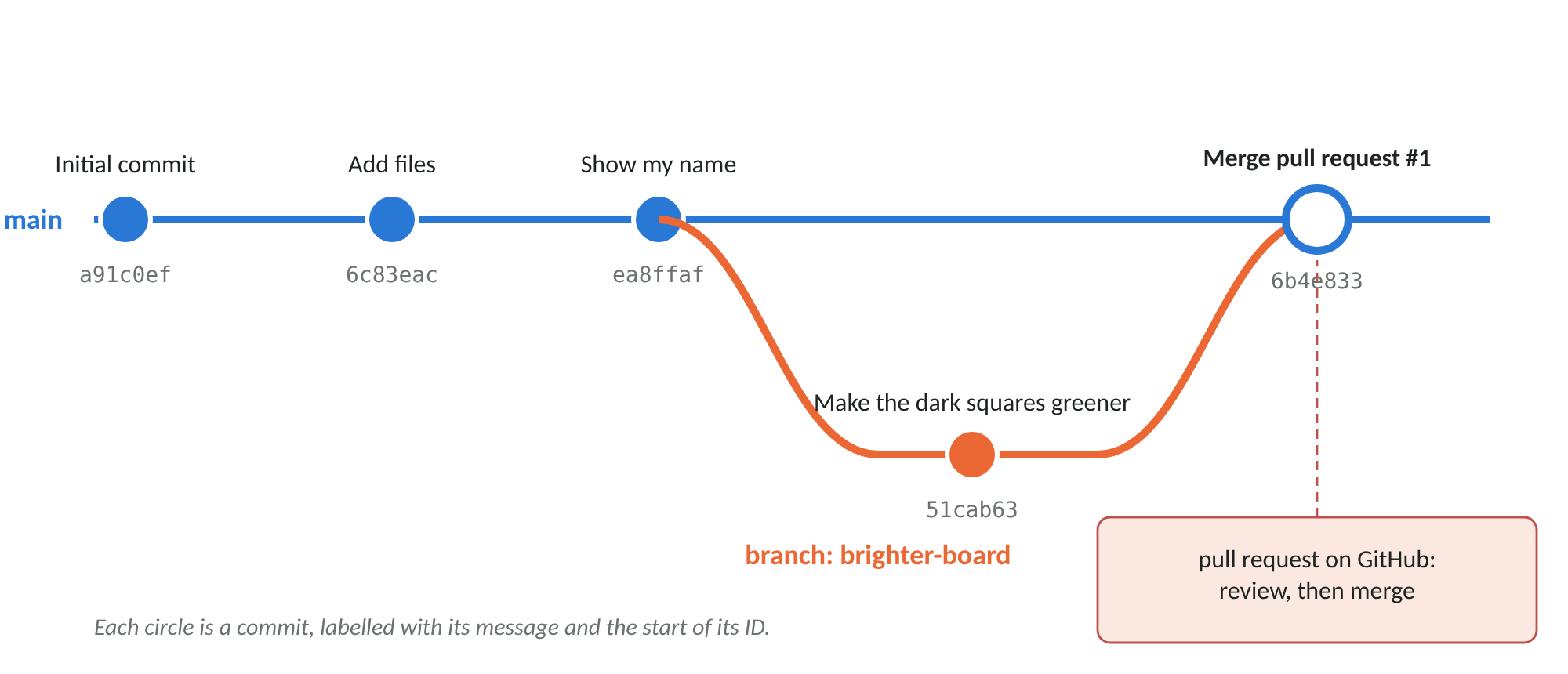
Figure 2: The branch brighter-board, merged into main through a pull request.
Make a branch and push it
On the command line:
git switch -c brighter-boardswitch -c creates the branch and moves onto it. Make a change, commit it as usual, and push the new branch to GitHub. The first push of a new branch needs -u origin and the branch name, which links your branch to GitHub's copy.
git commit -am "Make the dark squares greener"
git push -u origin brighter-board
The -a in commit -am stages every file Git already knows about before committing, a useful shortcut once you are confident.
In VS Code, click the branch name in the status bar and choose Create new branch..., or run Git: Create Branch... from the Command Palette (Ctrl+Shift+P). After committing, use Publish Branch to push it.
Open the pull request on the website
Go to the repository on GitHub. A banner offers Compare & pull request for your recently pushed branch. Click it
Check that base is
mainand compare isbrighter-boardWrite a title and a short description of what changed and why
Click Create pull request
Or, from the command line, gh pr create asks for the title and description and creates the same pull request.
Review and merge
On the pull request page, open the Files changed tab to review every line. When you are happy, click Merge pull request, then Confirm merge. GitHub then offers to delete the branch, which is safe: its commits are now part of main. The command-line equivalent is gh pr merge followed by the pull request number.
Bring the merge home
git switch main
git pull
git branch -d brighter-board
In the run made for this course, the history now looks like Figure 2.
*   6b4e833 Merge pull request #1 from your-name/brighter-board
|\
| * 51cab63 Make the dark squares greener
|/
* ea8ffaf Show my name in the page title
Check your progress
Your pull request shows as merged on GitHub, and git log --oneline --graph on your computer shows the branch joining main.
Module 7: Merge Conflicts
What a conflict is
Git combines changes automatically when they touch different lines. When two changes alter the same line differently, Git cannot know which to keep, and asks you. That is a merge conflict. It is normal, and not a sign that anything is broken.
Make one deliberately
On the GitHub website, edit
static/index.htmland change the heading to "Draughts Club". CommitOn your computer, without pulling first, change the same heading to "Sam's Draughts" and commit
Run
git pull
Auto-merging static/index.html
CONFLICT (content): Merge conflict in static/index.html
Automatic merge failed; fix conflicts and then commit the result.
Open the file and you will find Git's conflict markers. Everything between <<<<<<< and ======= is your version; everything between ======= and >>>>>>> is the incoming version from GitHub.
<<<<<<< HEAD
    <h1>Sam's Draughts</h1>
=======
    <h1>Draughts Club</h1>
>>>>>>> 78a34e4b32cc0fbe028d37b1d0595328d3780ebd
Resolve it in VS Code
VS Code shows each conflict with clickable actions above it: Accept Current Change keeps yours, Accept Incoming Change keeps GitHub's, Accept Both Changes keeps both, and Compare Changes shows them side by side. For harder conflicts, click Resolve in Merge Editor, choose the result, and click Complete Merge. Then commit and sync as usual.
Resolve it on the command line
Edit the file so it contains exactly what you want, with the markers removed, for example <h1>Sam's Draughts Club</h1>. Then stage it and commit. Git supplies the message for a merge.
git add static/index.html
git commit --no-edit
git push
If you want to give up and go back to how things were before the pull, git merge --abort does that.
Avoiding conflicts
Pull before you start work, commit and push in small steps, and use a branch for anything that will take more than one sitting.
Check your progress
git log --oneline --graph shows your commit and the website's commit joining in a merge commit.
Module 8: Undoing Things
Git makes most mistakes reversible. Choose the right tool for where the mistake is.
| The mistake | Command line | VS Code |
|---|---|---|
| Unwanted edits not yet staged | git restore FILE | Right-click the file under Changes, then Discard Changes |
| Staged something by accident | git restore --staged FILE | The minus icon (Unstage Changes) on the staged file |
| Typo in the last commit message, not yet pushed | git commit --amend -m "Better message" | Commit (Amend), from the Commit button's menu |
| A pushed commit was a mistake | git revert COMMIT-ID | Run the command in the integrated terminal |
| See an old version of a file | git show COMMIT-ID:path/to/file | Timeline view, then open the commit |
Why revert, not delete
Once a commit is on GitHub, someone else, or your server, may already have it. Revert does not remove the commit; it adds a new commit that undoes it, so everyone's history stays the same. In the run made for this course:
eb90c8c Revert "Describe the game"
34311ab Describe the game
Only ever use --amend on a commit you have not pushed.
The one thing Git cannot undo for you
If you commit a password, key or token and push it, assume it has been seen, even in a private repository. Removing it in a later commit does not remove it from the history. Change the password or cancel the key straight away. Then keep secrets out of the repository, for example in settings files listed in .gitignore.
Marking versions with tags
A tag gives a commit a permanent name, such as the version that is live on your server.
git tag -a v1.0 -m "First live version"
git push origin v1.0
Module 9 uses tags to roll back a bad update.
Module 9: Deploying from GitHub to Your Server
In the earlier courses you copied files to the server with scp. With GitHub, the server becomes a clone of your repository instead. Each update is then one command, the server always matches a known commit, and you can see exactly what is live.
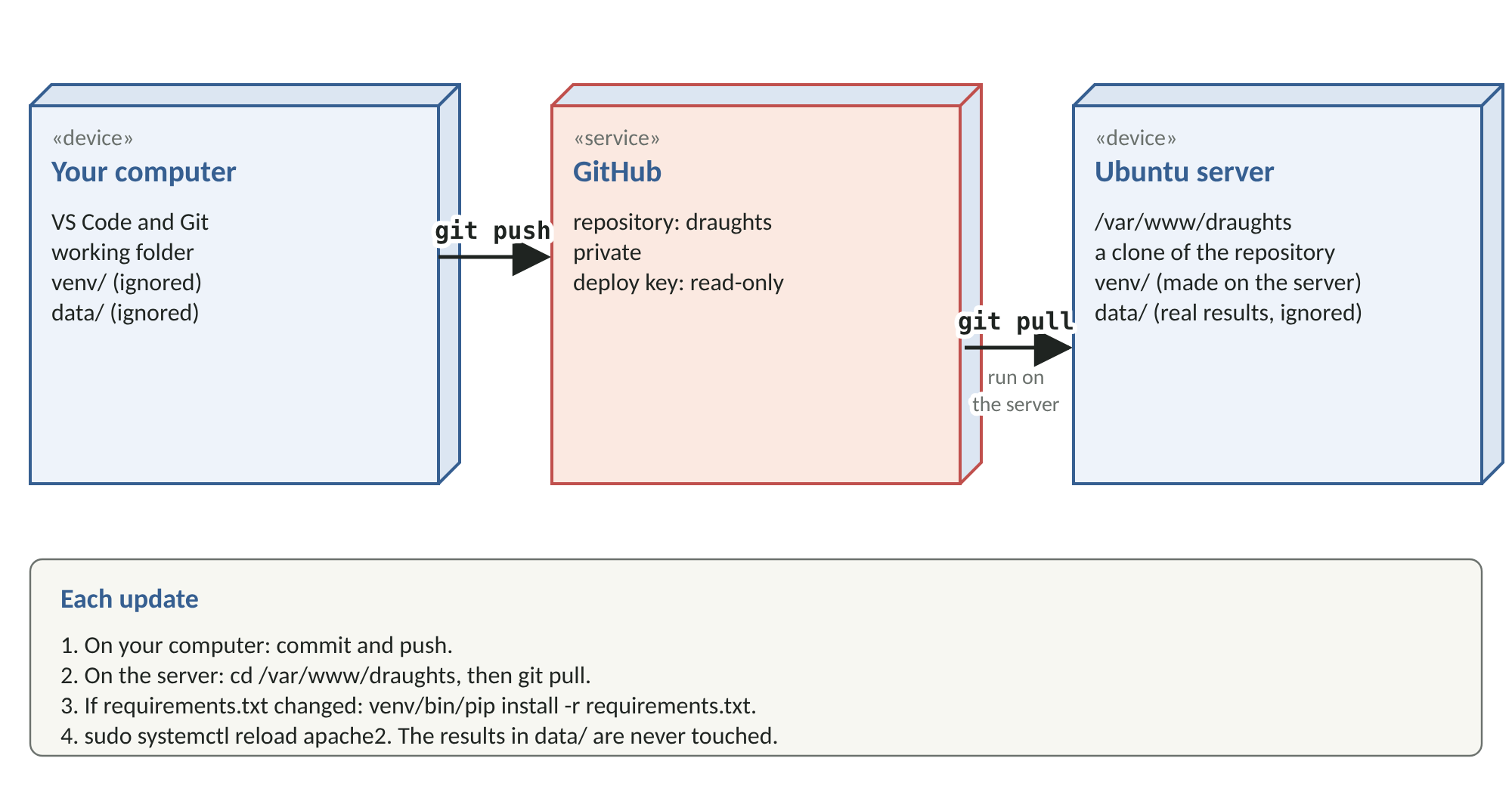
Figure 3: Deploying through GitHub. The results in data/ are ignored by Git, so updates never touch them.
Part A: Give the server read-only access
A private repository needs permission to be cloned. The safest permission for a server is a deploy key: an SSH key that can read one repository and nothing else. GitHub's documentation states that deploy keys are read-only by default, and that one key cannot be reused across repositories.
On the server, create the key. Press Enter when asked for a passphrase, because the server must be able to use it unattended.
ssh-keygen -t ed25519 -C "draughts server" -f ~/.ssh/draughts_deploy
cat ~/.ssh/draughts_deploy.pub
Copy the line that cat prints; that is the public half of the key, and it is safe to share. Then, on GitHub:
Open the
draughtsrepository and click SettingsIn the sidebar, click Deploy keys, then Add deploy key
Type a title such as "Ubuntu server", paste the key into Key, and leave Allow write access unticked
Click Add key
Finally, tell SSH on the server to use this key for this repository. Create or edit ~/.ssh/config and add the lines below. The name github-draughts is an alias: a nickname for GitHub that carries the right key. Each repository you deploy gets its own key and its own alias.
Host github-draughts
    HostName github.com
    User git
    IdentityFile ~/.ssh/draughts_deploy
    IdentitiesOnly yes
Teacher's note: If you make the repository public instead, no key is needed and the server can clone with git clone https://github.com/YOUR-NAME/draughts.git. Anyone could then read the code, but never the results, because data is ignored.
Part B: Replace the copied files with a clone
Install Git on the server if it is missing, move the old copy aside, and clone. Run these as your own user, not with sudo: the files should belong to you, as in Course 1.
sudo apt install git
cd /var/www
mv draughts draughts-old
git clone git@github-draughts:YOUR-NAME/draughts.git draughts
Then rebuild the parts that Git ignores: the virtual environment and the results folder, bringing your existing results across.
cd /var/www/draughts
python3 -m venv venv
venv/bin/pip install -r requirements.txt
mkdir -p data
cp ../draughts-old/data/*.json data/
sudo chown -R www-data:www-data data
sudo systemctl reload apache2
Check the game in your browser. When you are sure it works, you can delete draughts-old.
Part C: Each update
From now on, an update is the four steps in Figure 3. On the server:
cd /var/www/draughts
git pull
sudo systemctl reload apache2
If requirements.txt changed, run venv/bin/pip install -r requirements.txt before reloading. Because the results in data are ignored, git pull never touches them. In the test run, git status on the server reported a clean working tree even with the virtual environment and results in place.
Part D: Rolling back
If an update goes wrong, return the server to the last good tag, then reload Apache.
git checkout v1.0
sudo systemctl reload apache2
Git warns that you are in "detached HEAD" state, which simply means you are looking at a fixed commit rather than a branch. That is exactly right for a rollback. When the fix is ready, return with git switch main and git pull.
Teacher's note: Parts B, C and D were run for this course on Ubuntu 24.04 with Apache2 and mod_wsgi, using a local repository in place of GitHub: the clone served the game, a pushed change reached the live page after git pull, and checking out the tag brought the previous page back. The deploy key itself was created and the SSH alias checked, but the connection to GitHub could not be tested from that environment.
Troubleshooting
| What you see | Likely cause | What to do |
|---|---|---|
| Permission denied (publickey) | The deploy key is missing, or the alias is not used | Check the key is added on GitHub and the clone address starts git@github-draughts: |
| fatal: detected dubious ownership | Git was run by a different user from the folder's owner | Run git as the user who owns /var/www/draughts, not with sudo |
| Your local changes would be overwritten | Someone edited files on the server | Make changes on your computer instead; on the server, git restore . discards the edits |
| The page did not change | Apache still runs the old code | sudo systemctl reload apache2 |
Module 10: Putting the Other Three Projects on GitHub
Practise by putting each follow-on project on GitHub a different way. Unlike Course 1 in Module 3, these projects already contain a .gitignore, so the command line and VS Code leave the right files out automatically.
Course 2 with the command line
In the draughts-coach folder:
git init
git add .
git status --short
git commit -m "Course 2: the AI coach"
gh repo create draughts-coach --private --source=. --remote=origin --push
git init makes the folder a repository. Check the short status before committing: in the test run it listed 23 files, with no venv and no results. gh repo create then creates the repository on GitHub, links it as origin, and pushes your commit, all in one step.
Course 3 with VS Code
Open the draughts-learn folder in VS Code.
In the Source Control view, click Initialize Repository
Stage all the changes, type the message "Course 3: the AI learns", and click Commit
Open the Command Palette and run Publish to GitHub. Choose a private repository named
draughts-learn
Course 3 has one large file to watch. train/data/positions.jsonl, the training data made by self-play, is about 60 MB. GitHub's documentation states that Git warns about files over 50 MiB and that GitHub blocks files over 100 MiB. The project's .gitignore already lists it, because anyone can recreate it by running the self-play script. Check that it does not appear under Changes before you commit.
Course 4 your way
Use whichever method you prefer. The project's .gitignore already excludes the simulated results in sim_data, because they are test data, not code.
Check your progress
You have four repositories, draughts, draughts-coach, draughts-learn and draughts-adapt, each with its code, none with a venv folder or real results.
Module 11: Good Habits and Where Next
Habits that pay off
Commit one change at a time, with a message that says why: "Make the dark squares greener" is useful in six months, "changes" is not
Pull before you start, push when you stop, so your work is never only on one computer
Branch for anything bigger than a quick fix, and merge through a pull request, even when working alone, so you review your own changes once more
Run the tests before you push. Each draughts project includes them
Keep secrets and personal data out, using
.gitignore
Where next
GitHub Actions can run the tests automatically every time you push, and show a tick or a cross on each commit
Issues give each repository a simple to-do list, which pull requests can close
Collaborators can be invited to a private repository from its settings, and their pull requests reviewed in the same way as yours
Glossary of Terms
| Term | Meaning |
|---|---|
| Alias (SSH) | A nickname for a server in ~/.ssh/config that also chooses which key to use |
| Branch | A separate line of commits, so work can go on without disturbing main |
| Clone | A complete copy of a remote repository, including its history |
| Commit | A saved snapshot of the project with a message, author and time |
| Commit ID | The unique name of a commit, usually shown as its first seven characters |
| Conflict markers | The lines Git adds to a file to show two clashing versions during a merge conflict |
| Deploy key | An SSH key that gives one server access to one repository, read-only by default |
| Detached HEAD | Looking at a fixed commit rather than a branch, as when rolling back to a tag |
| Diff | A line-by-line list of what changed between two versions |
| Git | Free software that records the history of a project on your computer |
| .gitignore | A file listing what Git should never record |
| GitHub | A website that stores Git repositories online and adds tools for working on them |
| GitHub CLI (gh) | A command that lets the command line work with GitHub |
| main | The usual name of a repository's principal branch |
| Merge | Combining the commits of one branch into another |
| Merge conflict | When two changes alter the same lines differently and Git asks you to choose |
| origin | The usual name of the main remote repository |
| Private repository | A repository only you and people you invite can see |
| Pull | Download commits from a remote and merge them into your branch |
| Pull request | A page on GitHub that proposes merging one branch into another, so the changes can be reviewed |
| Push | Upload your commits to a remote |
| Remote | A copy of the repository somewhere else, such as GitHub |
| Repository | A project folder whose history Git is recording |
| Revert | A new commit that undoes an earlier one, leaving the history intact |
| SSH key | A pair of matching files used instead of a password: a private half kept secret and a public half that can be shared |
| Staging area | Where you collect the changes that will go into the next commit |
| Tag | A permanent name for a commit, such as v1.0 |
| Two-factor authentication | Signing in with a second check, such as a code from your phone, as well as a password |
Appendix: Sources
| Topic | Source |
|---|---|
| Installing Git | Pro Git book, "Installing Git": https://git-scm.com/book/en/v2/Getting-Started-Installing-Git |
| Creating a repository on the website | GitHub Docs, "Creating a new repository": https://docs.github.com/en/repositories/creating-and-managing-repositories/creating-a-new-repository |
| Creating a file on the website | GitHub Docs, "Creating new files": https://docs.github.com/en/repositories/working-with-files/managing-files/creating-new-files |
| Uploading files on the website | GitHub Docs, "Adding a file to a repository" (source on GitHub): https://github.com/github/docs/blob/5d50b102b7b464fb668e28cb0571f07d8dff7c2c/content/repositories/working-with-files/managing-files/adding-a-file-to-a-repository.md |
| File size limits | GitHub Docs, "About large files on GitHub": https://docs.github.com/en/repositories/working-with-files/managing-large-files/about-large-files-on-github |
| Pull requests | GitHub Docs, "Creating a pull request": https://docs.github.com/en/pull-requests/how-tos/create-pull-requests/creating-a-pull-request |
| Merging | GitHub Docs, "Merging a pull request": https://docs.github.com/en/pull-requests/collaborating-with-pull-requests/incorporating-changes-from-a-pull-request/merging-a-pull-request |
| Deploy keys | GitHub Docs, "Managing deploy keys": https://docs.github.com/en/enterprise-server@3.21/authentication/connecting-to-github-with-ssh/managing-deploy-keys |
| GitHub CLI | GitHub CLI project and installation guides: https://github.com/cli/cli |
| VS Code source control | VS Code documentation, "Source Control in VS Code": https://code.visualstudio.com/docs/sourcecontrol/overview |
| VS Code remotes and publishing | VS Code documentation, "Working with repositories and remotes": https://code.visualstudio.com/docs/sourcecontrol/repos-remotes |
| VS Code branches | VS Code documentation, "Git Branches and Worktrees in VS Code": https://code.visualstudio.com/docs/sourcecontrol/branches-worktrees |
| VS Code staging and undoing | VS Code documentation, "Staging and committing changes": https://code.visualstudio.com/docs/sourcecontrol/staging-commits |
| VS Code merge conflicts | VS Code documentation, "Merge conflicts": https://code.visualstudio.com/docs/sourcecontrol/merge-conflicts |