
Executive Summary
The purpose of this document is to teach a complete beginner how to build, test and publish a small web application: a game of English draughts with a computer opponent and a daily scoreboard. It is written as a self-paced course, with each module introducing one idea, explaining it in plain language and then showing the finished code. The scope covers the tools on the learner's own computer, the game rules, the artificial intelligence opponent, the scoreboard service and deployment to an Apache2 web server on Ubuntu. User accounts, databases and paid services are deliberately out of scope.
The course is based on a working application that was built and tested before the course was written. Every code listing in this document is taken from that application, and the Apache2 and mod_wsgi set-up in the deployment module was tested on Ubuntu 24.04. The modules assess three matters in turn: whether the game follows the published rules of English draughts, whether a classic search algorithm gives three clearly different levels of play on a mobile phone, and whether a single small Python service can keep a shared daily scoreboard without a database. Sources for the rules, the algorithm and the server software are listed in the appendix.
Module 0: Before You Start
What you will build
By the end of this course you will have a web page that anyone can open on a phone, tablet or computer. The page shows a draughts board. A visitor types their name, chooses to play a friend on the same device or to play the computer, and if they play the computer they choose Low, Medium or High strength. When the game ends, the result is sent to your server and added to a scoreboard that everyone can see. The scoreboard starts again at midnight.
There are no user accounts and no database. The game remembers your name on your own device, and the server keeps one small file of results for each day.
How the course works
Each module follows the same pattern. First I explain the idea in plain English. Then I show you the code, with comments inside it that repeat the important points. Finally there is a short section called "Check your progress" that tells you what you should see if everything is working. If what you see is different, stop and compare your files with the listings before moving on.
Teacher's note: You do not need to understand every line the first time you read it. Type it in, run it, watch what happens, then come back to the explanation. Understanding usually arrives on the second pass.
What you need
A computer running Windows, macOS or Linux
An internet connection to download the free tools
A modern web browser such as Chrome, Edge, Firefox or Safari
A phone, if you want to test the mobile layout on a real device
Access to an Ubuntu server running Apache2, for the final module only
Everything used in this course is free and open source, apart from your server hosting.
Module 1: The Big Picture
How a web application works
When you type an address into a browser, your browser sends a request across the internet to a computer called a server. Software on the server, in our case Apache2, receives the request and sends back a response. The response might be a web page, a picture, or a small piece of data.
Our game has two halves, and it is important to keep them separate in your mind.
The front end runs inside the visitor's browser. It is made of three languages: HTML describes what is on the page, CSS describes how it looks, and JavaScript describes how it behaves
The back end runs on your server. It is a small program written in Python, using a toolkit called Flask. Its only job in this project is to store and return the scoreboard
The board, the rules and the computer opponent all live in the front end. That means the computer opponent thinks using the visitor's own phone or computer, not your server. This keeps your server cheap and fast, because it never has to think about moves.
The architecture as a diagram
Software engineers often draw a system before they build it, using a standard set of drawing conventions called UML, the Unified Modeling Language. Because everyone uses the same symbols, a UML diagram can be read by any developer without a separate explanation. Figure 1 is a UML deployment diagram. It shows which pieces of software run on which machine, and how the machines talk to each other.
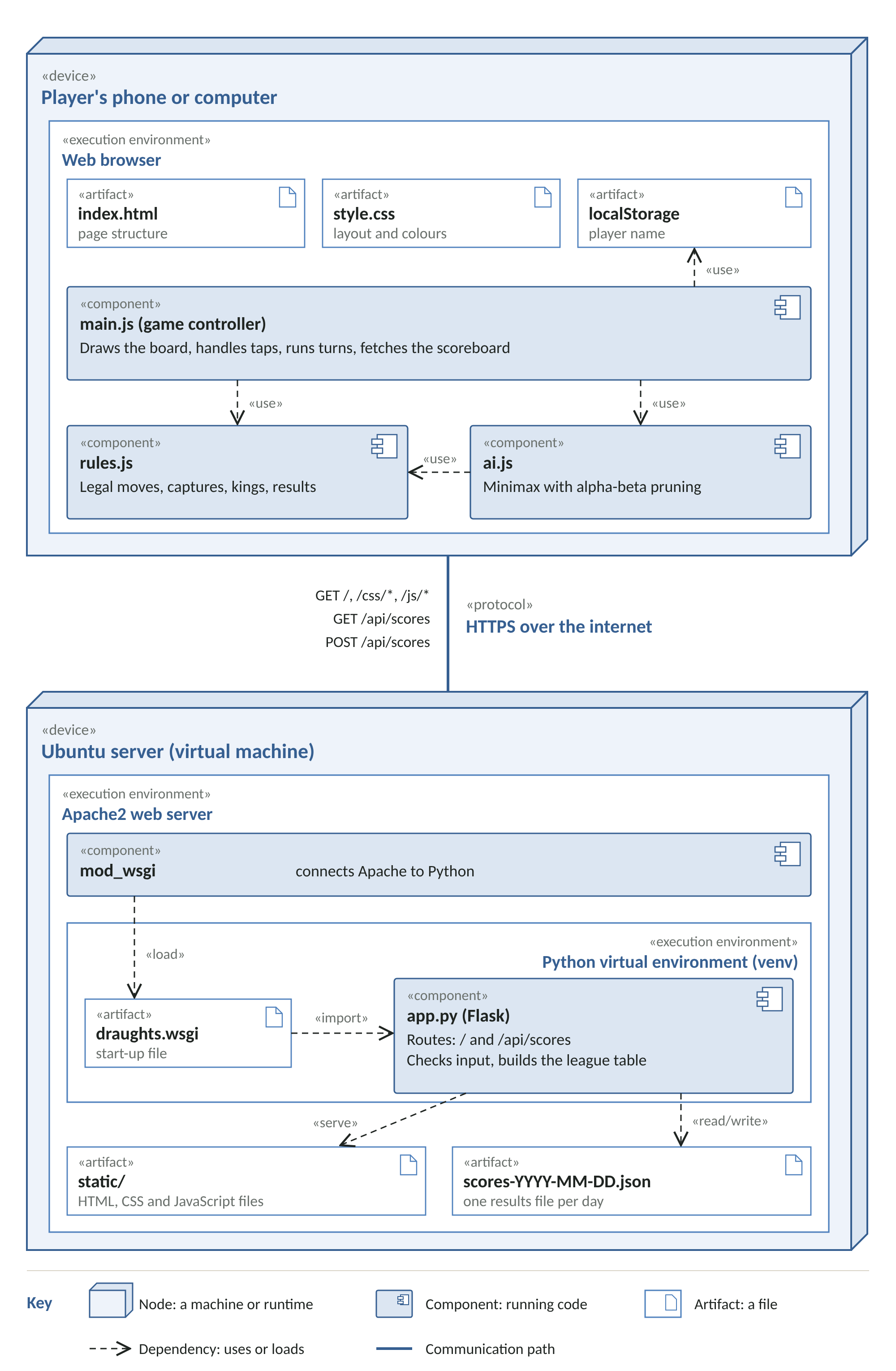
Figure 1: UML deployment diagram of the draughts web application.
Read the diagram from top to bottom. The two large three-dimensional boxes are nodes: the player's device and your server. Inside each node are smaller boxes. A box with a small two-tab icon is a component, a piece of code that runs. A box with a page icon is an artifact, a file. Dashed arrows are dependencies: the arrow points from the part that uses something to the part it uses. The single solid line between the nodes is the communication path, the only route by which the two halves exchange information. Notice that the three JavaScript components sit entirely in the top node. Nothing in the server ever calculates a move.
Teacher's note: Keep Figure 1 to hand as you work through the course. Every file you create appears somewhere on it, so whenever you are unsure where a piece of code fits, find it on the diagram first.
The journey of one request
The table below follows what happens when a player finishes a game.
| Step | Where | What happens |
|---|---|---|
| 1 | Browser | The JavaScript notices the game is over and builds a small message: who played Black, who played White, and who won |
| 2 | Internet | The message travels to your server as a POST request to the address api/scores |
| 3 | Apache2 | Apache receives the request and passes it to Flask through a connector called mod_wsgi |
| 4 | Flask | Flask checks the message, then adds the result to today's results file |
| 5 | Flask | Flask works out the new league table and sends it back |
| 6 | Browser | The JavaScript redraws the scoreboard on the page |
Figure 2 shows the same journey as a UML sequence diagram. Time runs from top to bottom. Each box along the top is a participant, and the dashed line below it is its lifeline. Solid arrows are requests and dashed arrows are replies. The thin rectangles on a lifeline show when that participant is busy. The frame marked alt holds two alternatives: the server either rejects the result or saves it, never both.
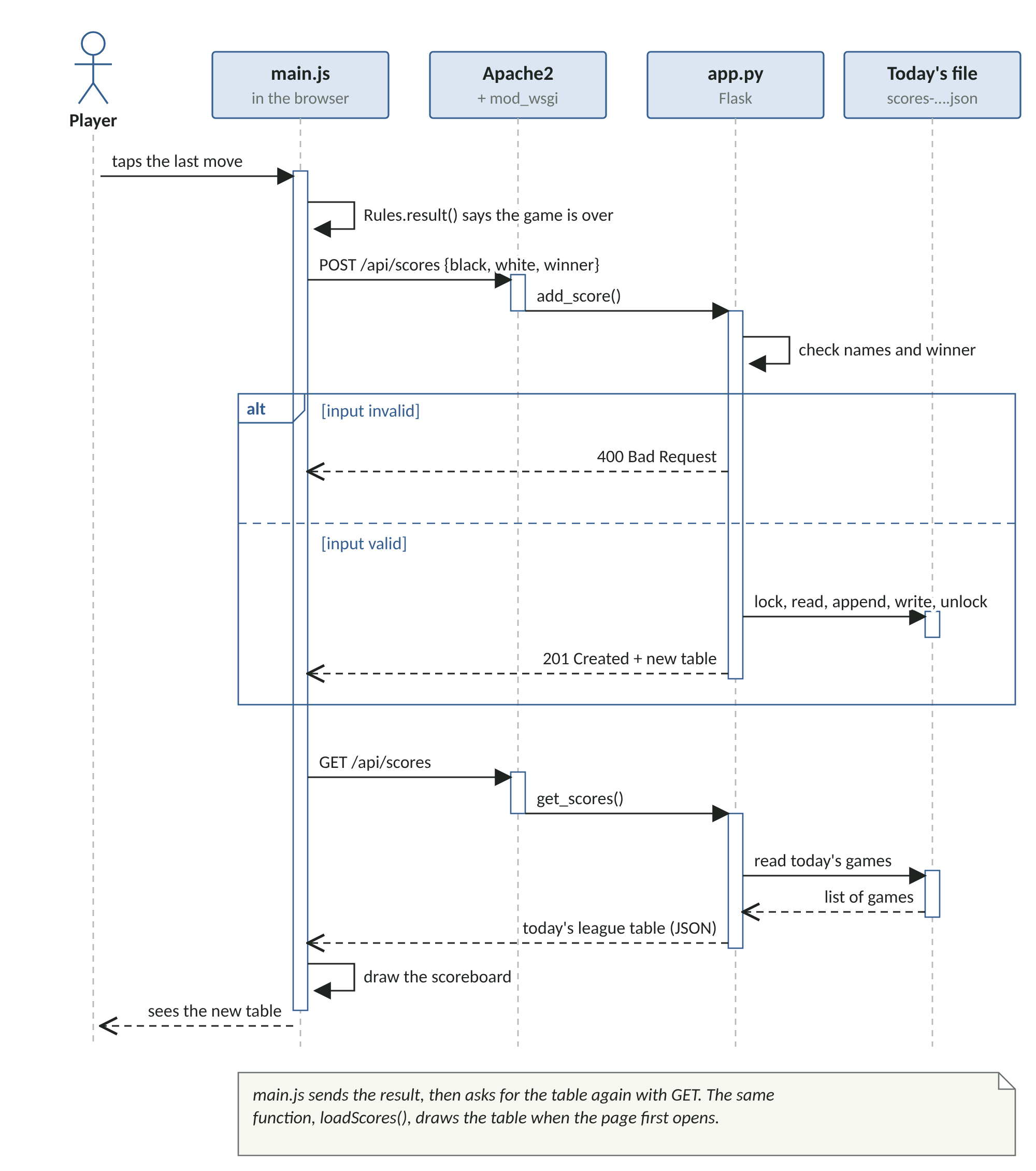
Figure 2: UML sequence diagram of saving a result and refreshing the scoreboard.
The diagram also shows a detail the table leaves out. After saving a result, main.js asks the server for the table a second time with a GET request. That is a deliberate choice: the same function draws the scoreboard when the page first opens and after every game, so there is only one piece of drawing code to get right.
Why the AI is not a chatbot
When people hear "AI" today they often think of large language models such as chatbots. Those models are trained to predict text, not to calculate. Asked to play draughts, a language model will often suggest moves that break the rules, and it needs far more computing power than a phone has to spare.
Board games have a much older and much better form of artificial intelligence called game-tree search. The computer imagines every possible move, then every reply, then every reply to that, and picks the move that leads to the best result. The algorithm we will use is called minimax with alpha-beta pruning. It is open, well documented, needs no training data and fits in about one hundred lines of JavaScript.
To give you a sense of how far this idea goes: in 2007 a team at the University of Alberta, led by Jonathan Schaeffer, published a paper in the journal Science titled "Checkers is Solved". Their program, Chinook, used search of this kind together with very large databases, and they proved that a perfectly played game ends in a draw. Our version is far smaller, but it uses the same core idea.
Check your progress
You should be able to answer three questions before moving on. Where does the computer opponent run? What does the server store? What connects Apache to Python? If you are unsure, reread this module.
Module 2: Setting Up Your Computer
In this module you will install the tools and create an empty project. Take your time here. Most problems later in the course come from a step missed in this module.
Install Visual Studio Code
Visual Studio Code, usually called VS Code, is a free code editor from Microsoft. It is where you will write every file in this course.
Go to https://code.visualstudio.com and download the version for your computer
Run the installer and accept the default options. On Windows, tick the box that says "Add to PATH" if it is offered
Open VS Code. Click the Extensions icon on the left-hand side (it looks like four squares)
Search for "Python" and install the extension published by Microsoft
Install Python
Python runs the scoreboard service on your computer while you develop it.
Go to https://www.python.org/downloads and download Python for your computer
On Windows, the download is the Python install manager. Run it and accept the default options. Python itself is installed the first time you use it, in the check below. If you are asked whether to add a folder to your PATH, answer yes
On macOS, run the installer package. On Ubuntu Linux, Python 3 is already installed
To check it worked, open VS Code, choose Terminal then New Terminal from the menu, and type the command for your system. On macOS or Linux, type the following.
python3 --versionOn Windows, type the following.
python --versionYou should see a version number starting with 3. If you see "command not found", close and reopen VS Code, then try again.
Teacher's note: If typing python on Windows opens the Microsoft Store, or says the command is not found, open Settings, search for "Manage app execution aliases", make sure the Python entries are turned on, then close and reopen VS Code.
Install Node.js (optional)
Node.js lets you run JavaScript outside a browser. We only use it in Module 10 to run the automatic tests for the game rules. If you want to follow that module, download the LTS version from https://nodejs.org and install it with the default options.
Create the project folder
Create a folder called
draughtssomewhere easy to find that is not kept in sync by OneDrive or iCloud Drive, such as a folder calledProjectsin your home folder. On many computers the Documents and Desktop folders are synced, and syncing a virtual environment can break itIn VS Code choose File, then Open Folder, and select the
draughtsfolderIf VS Code asks whether you trust the authors of the files in this folder, choose Yes
Create a virtual environment
A virtual environment is a private copy of Python for one project. Anything you install into it stays inside the project, so different projects cannot interfere with each other. In the VS Code terminal, type the commands for your system.
On macOS or Linux, type the following.
python3 -m venv venv
source venv/bin/activate
On Windows, type the following.
python -m venv venv
venv\Scripts\activate
The start of your terminal line should now show (venv). That tells you the virtual environment is active. You need to activate it again each time you open a new terminal.
Teacher's note: On Windows, if you see an error about running scripts being disabled, type Set-ExecutionPolicy -Scope CurrentUser RemoteSigned, answer Y, and try the activate command again.
Check your progress
You have VS Code open on an empty draughts folder, the Python extension is installed, and your terminal shows (venv).
Module 3: The Project Layout
Before writing code, it helps to see where everything will go. Create the folders below in VS Code by right-clicking in the Explorer panel and choosing New Folder. Create each file with New File as you reach it in the course.
| File or folder | What it is for |
|---|---|
| app.py | The Python scoreboard service |
| draughts.wsgi | The small file Apache uses to start app.py |
| requirements.txt | The list of Python packages the project needs |
| static/index.html | The structure of the web page |
| static/css/style.css | The appearance of the page, including the phone layout |
| static/js/rules.js | The rules of draughts |
| static/js/ai.js | The computer opponent |
| static/js/main.js | The code that joins the page, the rules and the AI together |
| data/ | Where the daily results files are saved. Start it empty |
| apache/draughts.conf | The Apache settings you will copy to the server |
| tests/ | Automatic checks for the rules and the scoreboard |
Figure 3 shows the same files as a UML component diagram, which answers the question "what depends on what?". An arrow labelled «load» means index.html loads that file, and the numbers give the order the scripts must load in. Each «use» arrow points from a file to a file it needs. The small circle on top of app.py is an interface: the /api/scores address that main.js uses to reach the server. The two test files sit outside the main packages because they are never sent to players.
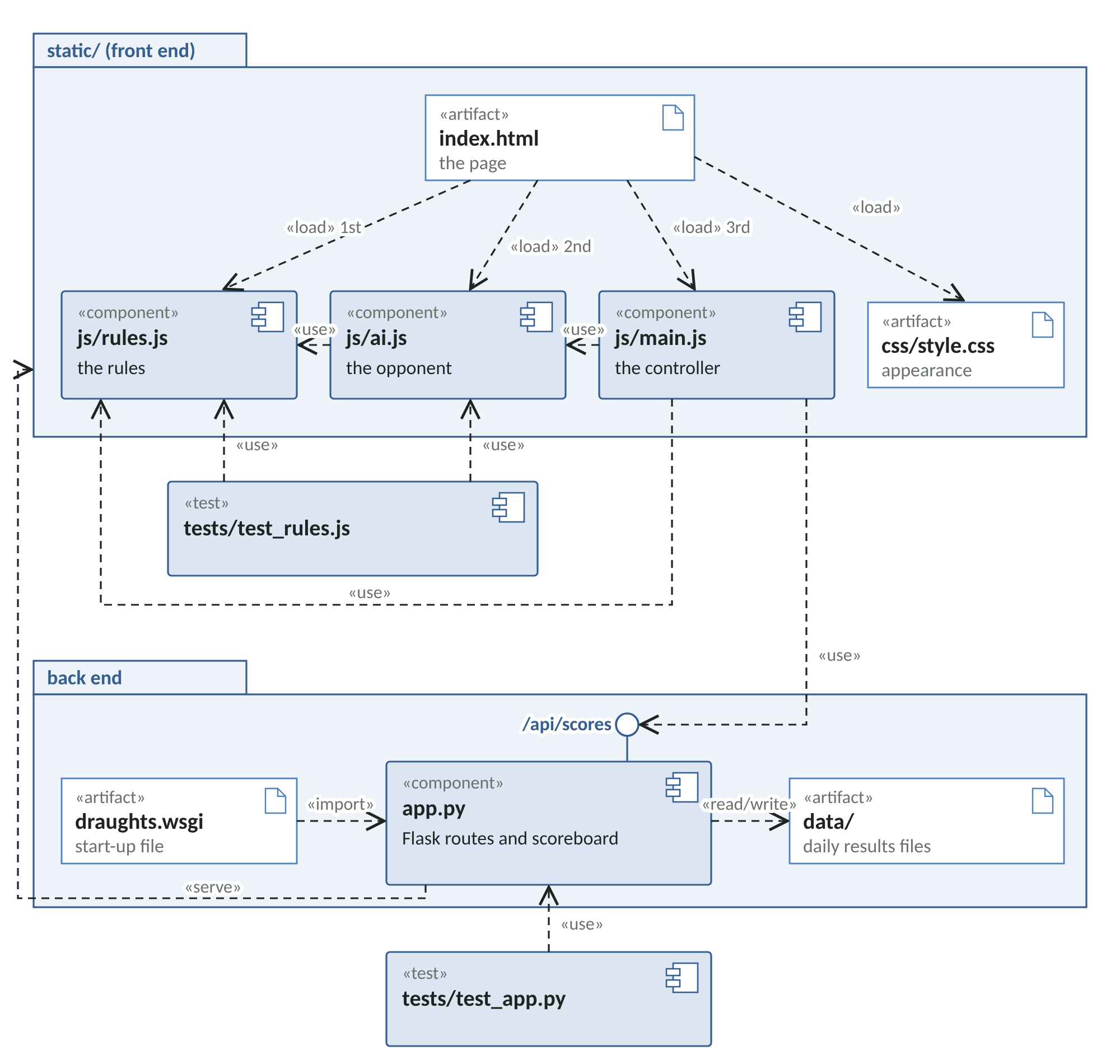
Figure 3: UML component diagram of the project files and their dependencies.
The word static means files that the server sends exactly as they are, without changing them. The browser then runs them.
Create requirements.txt now with this single line, then install Flask into your virtual environment.
File: requirements.txt
Flask>=3.0,<4
pip install -r requirements.txt
Module 4: The Page Skeleton (HTML)
What HTML does
HTML is made of elements. Each element starts with a tag such as <header> and usually ends with a matching closing tag such as </header>. Elements can sit inside each other, like boxes inside boxes. The browser reads them from top to bottom and builds the page.
Our page has four main parts.
A header with the title and a New game button
A game section with a status line, an empty board and the piece counts
A scores section with a table for today's scoreboard
A dialog, which is a pop-up box where players enter their names and choose the game type
Notice that the board is just an empty <div id="board">. We do not write the sixty-four squares by hand. The JavaScript creates them, which means the same code can redraw the board after every move.
Two lines that matter for phones
The line <meta name="viewport" content="width=device-width, initial-scale=1"> tells a phone to use its real screen width. Without it, a phone pretends to be a wide desktop screen and shrinks everything until it is unreadable.
At the bottom, three <script> tags load the JavaScript files in a particular order: the rules first, then the AI, which uses the rules, then the main file, which uses both. If you change the order, the game will not start.
The listing
Create static/index.html and type in the following.
File: static/index.html
<!DOCTYPE html>
<html lang="en-GB">
<head>
  <meta charset="utf-8">
  <!-- This line makes the page scale correctly on mobile phones. -->
  <meta name="viewport" content="width=device-width, initial-scale=1">
  <title>Draughts</title>
  <link rel="stylesheet" href="css/style.css">
</head>
<body>
  <header class="top">
    <h1>Draughts</h1>
    <button id="newGameBtn" class="link-btn" type="button">New game</button>
  </header>

  <main class="layout">
    <!-- The game area: status line, board and piece counts. -->
    <section class="game" aria-label="Game">
      <div id="status" class="status" role="status">Enter your name to start.</div>
      <div id="board" class="board" aria-label="Draughts board"></div>
      <div class="players">
        <div class="player">
          <span class="dot dot-w"></span><span id="whiteName">White</span>
          <span id="whiteCount" class="count"></span>
        </div>
        <div class="player">
          <span class="dot dot-b"></span><span id="blackName">Black</span>
          <span id="blackCount" class="count"></span>
        </div>
      </div>
    </section>

    <!-- Today's scoreboard, filled in by main.js from the server. -->
    <section class="scores" aria-label="Today's scoreboard">
      <h2>Today's scoreboard</h2>
      <table>
        <thead>
          <tr><th>Player</th><th>P</th><th>W</th><th>D</th><th>L</th><th>Pts</th></tr>
        </thead>
        <tbody id="scoreRows">
          <tr><td colspan="6" class="muted">No games yet today.</td></tr>
        </tbody>
      </table>
      <p class="muted small">Win 3 points, draw 1. Resets at midnight.</p>
    </section>
  </main>

  <!-- The start dialog: choose players and difficulty. -->
  <dialog id="setup">
    <form id="setupForm" method="dialog">
      <h2>New game</h2>
      <fieldset class="choice">
        <legend>Players</legend>
        <label><input type="radio" name="mode" value="1" checked> 1 player</label>
        <label><input type="radio" name="mode" value="2"> 2 players</label>
      </fieldset>

      <label class="field">Your name (Black, moves first)
        <input id="nameBlack" name="nameBlack" maxlength="20" required autocomplete="nickname">
      </label>

      <label class="field" id="whiteField" hidden>Second player (White)
        <input id="nameWhite" name="nameWhite" maxlength="20">
      </label>

      <fieldset class="choice" id="levelField">
        <legend>Computer strength</legend>
        <label><input type="radio" name="level" value="easy"> Low</label>
        <label><input type="radio" name="level" value="medium" checked> Medium</label>
        <label><input type="radio" name="level" value="hard"> High</label>
      </fieldset>

      <button class="primary" type="submit">Play</button>
    </form>
  </dialog>

  <!-- Load the rules first, then the AI that uses them, then the page logic. -->
  <script src="js/rules.js"></script>
  <script src="js/ai.js"></script>
  <script src="js/main.js"></script>
</body>
</html>
Check your progress
Open the file in your browser by double-clicking it. You will see the title, an empty space where the board will be and the scoreboard heading, but no styling and no board yet. That is expected.
Module 5: Styling and the Mobile Layout (CSS)
What CSS does
CSS is a list of rules. Each rule names some elements with a selector, then sets properties on them. For example .status { font-weight: 600; } makes any element with the class status bold.
The ideas to look for in this file
Custom properties. At the top, inside :root, we give every colour a name such as --dark-sq. The rest of the file uses those names. To change the board colour you only edit one line.
A square board on any screen. The board uses CSS Grid with eight equal columns and eight equal rows. Its width is set with min(100%, 72vh, 600px), which means "whichever is smallest: the full width available, seventy-two per cent of the screen height, or 600 pixels". The aspect-ratio: 1 / 1 line then keeps it square. This one rule is what makes the board fit both a phone held upright and a wide monitor.
Stacking on small screens. The .layout rule places the board and scoreboard one above the other by default. The @media (min-width: 820px) rule says that on screens at least 820 pixels wide, they sit side by side instead. Designing for the small screen first and then adding rules for larger ones is called mobile-first design.
Touch-friendly details. touch-action: manipulation stops a phone from zooming when a player taps quickly. The name boxes use a font size of sixteen pixels because iPhones zoom into any text box with smaller text.
Hidden really means hidden. The rule [hidden] { display: none !important; } makes sure that anything the JavaScript hides stays hidden, even when another rule tries to display it. We found this was needed during testing: without it, the "Second player" box appeared in one-player mode.
The listing
Create static/css/style.css.
File: static/css/style.css
/* style.css - how the page looks. */

/* Colours are kept in one place as "custom properties" so they are easy to change. */
:root {
  --bg: #f4f1ea;
  --panel: #ffffff;
  --text: #1f2421;
  --muted: #6b716d;
  --line: #d9d4c7;
  --light-sq: #ece3cf;
  --dark-sq: #5b7a5e;
  --black-piece: #1f2421;
  --white-piece: #fbf8f2;
  --select: #e3b23c;
  --target: rgba(227, 178, 60, 0.55);
  --last: rgba(255, 255, 255, 0.18);
  --accent: #2f5d50;
}

* { box-sizing: border-box; }

/* Make sure anything marked hidden in the HTML really is hidden. */
[hidden] { display: none !important; }

body {
  margin: 0;
  font-family: system-ui, -apple-system, "Segoe UI", Roboto, sans-serif;
  background: var(--bg);
  color: var(--text);
  /* Stops the page bouncing or zooming when tapping quickly on phones. */
  touch-action: manipulation;
}

.top {
  display: flex;
  justify-content: space-between;
  align-items: center;
  max-width: 980px;
  margin: 0 auto;
  padding: 12px 16px;
}
.top h1 { font-size: 1.3rem; margin: 0; letter-spacing: 0.02em; }

.link-btn {
  background: none;
  border: 1px solid var(--line);
  border-radius: 6px;
  padding: 8px 12px;
  font: inherit;
  color: var(--accent);
  cursor: pointer;
}

/* On phones the board and scoreboard stack; on wider screens they sit side by side. */
.layout {
  display: grid;
  gap: 16px;
  max-width: 980px;
  margin: 0 auto;
  padding: 0 16px 24px;
}
@media (min-width: 820px) {
  .layout { grid-template-columns: 1fr 300px; align-items: start; }
}

.status {
  min-height: 1.5em;
  margin-bottom: 8px;
  font-weight: 600;
}

/* The board is always square, never wider than the screen
   and never taller than most of it. */
.board {
  display: grid;
  grid-template-columns: repeat(8, 1fr);
  grid-template-rows: repeat(8, 1fr);
  width: min(100%, 72vh, 600px);
  aspect-ratio: 1 / 1;
  border: 6px solid #3e3a32;
  border-radius: 4px;
  user-select: none;
}

.sq {
  position: relative;
  display: flex;
  align-items: center;
  justify-content: center;
  background: var(--light-sq);
}
.sq.dark { background: var(--dark-sq); cursor: pointer; }
.sq.last::before { content: ""; position: absolute; inset: 0; background: var(--last); }
.sq.target::after {
  content: "";
  position: absolute;
  width: 34%;
  height: 34%;
  border-radius: 50%;
  background: var(--target);
}

.piece {
  position: relative;
  width: 78%;
  height: 78%;
  border-radius: 50%;
  box-shadow: inset 0 -3px 0 rgba(0, 0, 0, 0.25), 0 2px 3px rgba(0, 0, 0, 0.35);
  display: flex;
  align-items: center;
  justify-content: center;
  font-size: clamp(12px, 4.5vw, 26px);
  line-height: 1;
}
.piece.b { background: var(--black-piece); color: var(--select); }
.piece.w { background: var(--white-piece); color: #9a7414; border: 1px solid #c9c1ad; }
.piece.selected { outline: 3px solid var(--select); outline-offset: 2px; }
.piece.king::after { content: "\265B"; } /* a crown symbol */

.players {
  display: flex;
  justify-content: space-between;
  width: min(100%, 72vh, 600px);
  margin-top: 8px;
  font-size: 0.95rem;
}
.player { display: flex; align-items: center; gap: 6px; }
.dot { width: 14px; height: 14px; border-radius: 50%; display: inline-block; }
.dot-b { background: var(--black-piece); }
.dot-w { background: var(--white-piece); border: 1px solid #c9c1ad; }
.count { color: var(--muted); }

.scores {
  background: var(--panel);
  border: 1px solid var(--line);
  border-radius: 8px;
  padding: 12px 14px;
}
.scores h2 { font-size: 1rem; margin: 0 0 8px; }
.scores table { width: 100%; border-collapse: collapse; font-size: 0.9rem; }
.scores th, .scores td {
  text-align: right;
  padding: 5px 4px;
  border-bottom: 1px solid var(--line);
}
.scores th:first-child, .scores td:first-child { text-align: left; }
.muted { color: var(--muted); }
.small { font-size: 0.8rem; }

dialog {
  border: none;
  border-radius: 10px;
  padding: 20px;
  width: min(92vw, 360px);
  box-shadow: 0 10px 40px rgba(0, 0, 0, 0.3);
}
dialog::backdrop { background: rgba(0, 0, 0, 0.45); }
dialog h2 { margin-top: 0; }
.choice {
  border: none;
  padding: 0;
  margin: 0 0 14px;
  display: flex;
  flex-wrap: wrap;
  gap: 6px 16px;
}
.choice legend { font-weight: 600; margin-bottom: 6px; padding: 0; }
.choice label { display: flex; align-items: center; gap: 6px; min-height: 32px; }
.field { display: block; font-weight: 600; margin-bottom: 14px; }
.field input {
  display: block;
  width: 100%;
  margin-top: 6px;
  padding: 10px;
  font-size: 16px; /* 16px or more stops iPhones zooming in on the box */
  border: 1px solid var(--line);
  border-radius: 6px;
}
.primary {
  width: 100%;
  padding: 12px;
  font: inherit;
  font-weight: 600;
  color: #fff;
  background: var(--accent);
  border: none;
  border-radius: 6px;
  cursor: pointer;
}
Check your progress
Refresh the page in your browser. The colours, fonts and layout should change, although the board is still empty.
Module 6: Teaching the Computer the Rules
This is the most important module, because both the human player and the AI depend on the rules being right.
The rules of English draughts
These are the rules our game follows. They are summarised from the published rules listed in the appendix.
The board has sixty-four squares, but only the thirty-two dark squares are used
Each player starts with twelve pieces, called men, on the three rows nearest to them
Black moves first
A man moves one square diagonally forwards onto an empty square
If an opponent's piece is diagonally next to yours and the square beyond it is empty, you can jump over it and remove it. This is a capture
Captures are compulsory. If you can capture, you must
After a capture, if the same piece can capture again, it must carry on. This is a multi-jump. You do not have to choose the sequence that captures the most pieces
A man that reaches the far side of the board becomes a king. Kings can move and capture backwards as well as forwards. If a man becomes a king during a capture, its move ends there
A player who has no legal move, either because they have no pieces or because every piece is blocked, loses
We add one house rule that is not part of the official rules. If forty moves pass on each side with no capture and no man moving, the game is a draw. Without this, two kings could chase each other for ever.
How the computer sees the board
A computer cannot look at a board, so we describe it with data. Our board is a list of eight rows, and each row is a list of eight single characters.
| Character | Meaning |
|---|---|
| . | Empty square |
| b | Black man |
| B | Black king |
| w | White man |
| W | White king |
Row 0 is the top of the screen and column 0 is the left. A square is dark when its row number plus its column number is an odd number.
How a move is described
A move is described by its path, the list of squares the piece visits, and its captures, the list of squares whose pieces are removed. A simple move has a path of two squares and no captures. A double jump has a path of three squares and two captures.
Figure 4 puts these ideas side by side. On the left is the starting position with its row and column numbers. On the right is a double jump: the Black man on row 5, column 0 jumps two White men in one move. Below each board is the data the code works with. The double jump is the same position used by one of the automatic tests in Module 10, and the path and captures shown are exactly what legalMoves returns for it.
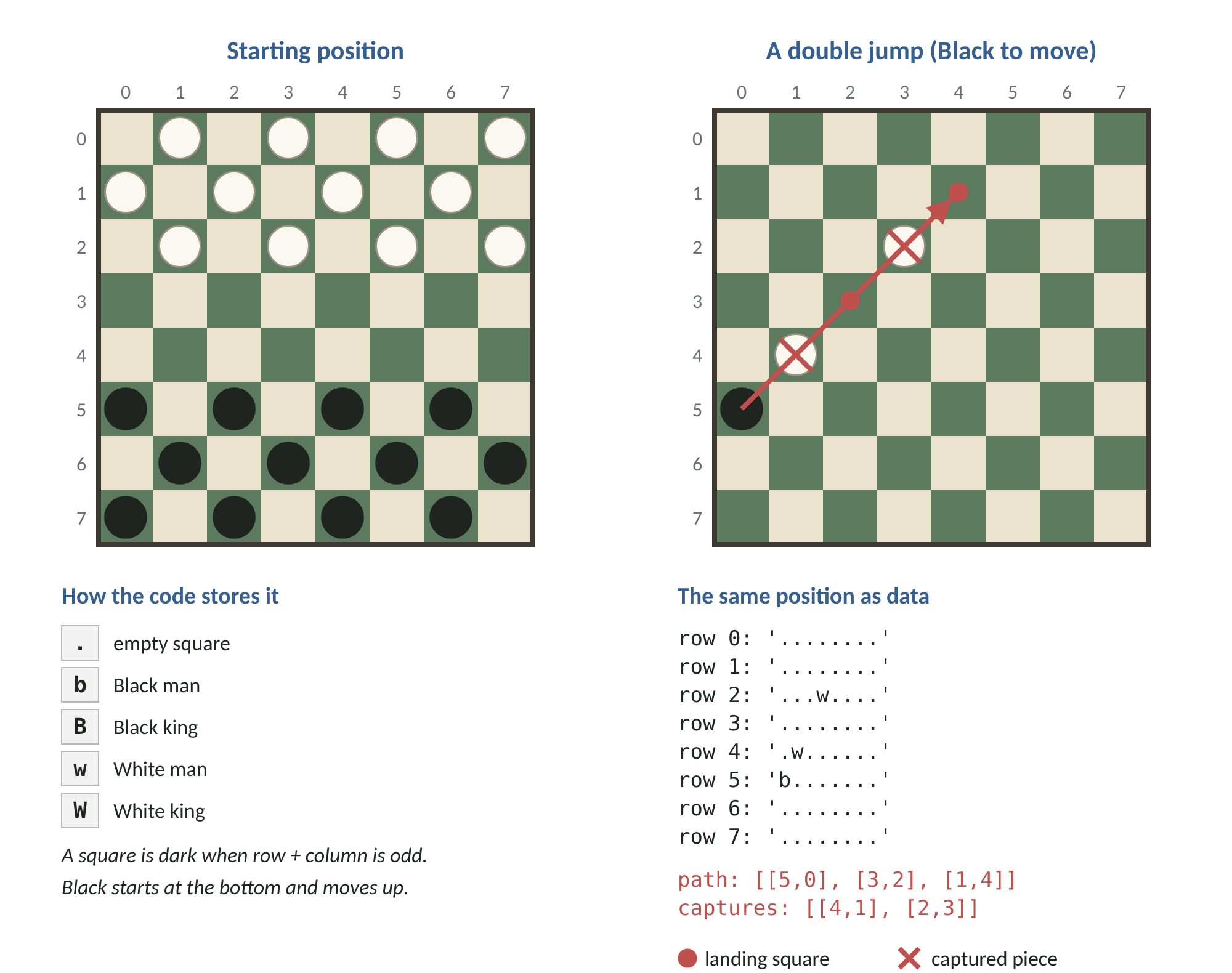
Figure 4: Board coordinates, the starting position and a double jump, with the matching data.
The key functions
legalMoves is the heart of the file. It looks at every piece belonging to the player whose turn it is, collects every simple move and every capture, and then applies the compulsory-capture rule: if there is at least one capture, only captures are returned.
captureSequences finds multi-jumps using recursion, which means a function that calls itself. It makes one jump, then calls itself from the landing square to look for the next jump, and keeps going until no more jumps are possible. Recursion can feel strange at first. Think of it as following every branch of a path through a maze until each branch reaches a dead end.
applyMove returns a brand-new game state and never changes the old one. This matters enormously for the AI, which needs to try thousands of imaginary moves without spoiling the real game.
result decides whether the game has ended and who has won.
The listing
Create static/js/rules.js.
File: static/js/rules.js
/*
 * rules.js - the rules of English draughts (checkers).
 *
 * This file knows nothing about the screen. It only answers questions such as
 * "what moves are legal?" and "what does the board look like after this move?".
 * Keeping the rules separate from the display means the AI can use the same
 * code to think ahead, and we can test the rules on their own.
 *
 * The board is an 8 x 8 grid stored as an array of 8 rows, each row an array
 * of 8 single-character strings:
 *   '.'  empty square
 *   'b'  Black man        'B'  Black king
 *   'w'  White man        'W'  White king
 * Row 0 is the top of the screen. Black starts at the bottom and moves up.
 * Only the dark squares are used: a square is dark when (row + col) is odd.
 */

const Rules = (function () {
  const SIZE = 8;
  // House rule for this course (not part of the official rules): the game is
  // drawn after 40 moves each with no capture and no man moved, so two kings
  // chasing each other cannot go on for ever.
  const DRAW_LIMIT = 80;

  // Create the starting position.
  function newBoard() {
    const board = [];
    for (let r = 0; r < SIZE; r++) {
      const row = [];
      for (let c = 0; c < SIZE; c++) {
        const dark = (r + c) % 2 === 1;
        if (dark && r < 3) row.push('w');
        else if (dark && r > 4) row.push('b');
        else row.push('.');
      }
      board.push(row);
    }
    return board;
  }

  // A new game state: the board, whose turn it is, and a counter for the draw rule.
  function newGame() {
    return { board: newBoard(), turn: 'b', quietPlies: 0 };
  }

  function copyBoard(board) {
    return board.map(row => row.slice());
  }

  function ownerOf(piece) {
    if (piece === 'b' || piece === 'B') return 'b';
    if (piece === 'w' || piece === 'W') return 'w';
    return null;
  }

  function isKing(piece) {
    return piece === 'B' || piece === 'W';
  }

  function opponent(player) {
    return player === 'b' ? 'w' : 'b';
  }

  function onBoard(r, c) {
    return r >= 0 && r < SIZE && c >= 0 && c < SIZE;
  }

  // Which diagonal directions may this piece move in?
  // Men move forwards only; kings move both ways.
  function directionsFor(piece) {
    const up = [[-1, -1], [-1, 1]];
    const down = [[1, -1], [1, 1]];
    if (isKing(piece)) return up.concat(down);
    return ownerOf(piece) === 'b' ? up : down;
  }

  // The row on which a player's men become kings.
  function crowningRow(player) {
    return player === 'b' ? 0 : SIZE - 1;
  }

  /*
   * Find every capture sequence that starts from (r, c).
   * A move is an object: { path: [[r,c], ...], captures: [[r,c], ...] }
   * path[0] is the starting square; the last entry is where the piece ends.
   * In English draughts a capturing piece must keep jumping while it can,
   * so we search recursively until no further jump is possible.
   */
  function captureSequences(board, r, c, piece, path, captures) {
    const results = [];
    for (const [dr, dc] of directionsFor(piece)) {
      const midR = r + dr, midC = c + dc;       // the square being jumped
      const landR = r + 2 * dr, landC = c + 2 * dc; // the landing square
      if (!onBoard(landR, landC)) continue;
      const jumped = board[midR][midC];
      if (ownerOf(jumped) !== opponent(ownerOf(piece))) continue;
      if (board[landR][landC] !== '.') continue;

      // Make the jump on a copy of the board, then look for more jumps.
      const next = copyBoard(board);
      next[r][c] = '.';
      next[midR][midC] = '.';
      next[landR][landC] = piece;
      const newPath = path.concat([[landR, landC]]);
      const newCaptures = captures.concat([[midR, midC]]);

      // A man that reaches the far row is crowned and the move ends there.
      const crowned = !isKing(piece) && landR === crowningRow(ownerOf(piece));
      const more = crowned ? [] : captureSequences(next, landR, landC, piece, newPath, newCaptures);
      if (more.length === 0) results.push({ path: newPath, captures: newCaptures });
      else results.push(...more);
    }
    return results;
  }

  // List every legal move for the player whose turn it is.
  // If any capture exists, only captures are legal (captures are compulsory).
  function legalMoves(state) {
    const { board, turn } = state;
    const captures = [];
    const steps = [];
    for (let r = 0; r < SIZE; r++) {
      for (let c = 0; c < SIZE; c++) {
        const piece = board[r][c];
        if (ownerOf(piece) !== turn) continue;
        captures.push(...captureSequences(board, r, c, piece, [[r, c]], []));
        for (const [dr, dc] of directionsFor(piece)) {
          const nr = r + dr, nc = c + dc;
          if (onBoard(nr, nc) && board[nr][nc] === '.') {
            steps.push({ path: [[r, c], [nr, nc]], captures: [] });
          }
        }
      }
    }
    return captures.length > 0 ? captures : steps;
  }

  // Return a NEW state with the move played. The old state is not changed,
  // which lets the AI try moves without spoiling the real game.
  function applyMove(state, move) {
    const board = copyBoard(state.board);
    const [fr, fc] = move.path[0];
    const [tr, tc] = move.path[move.path.length - 1];
    let piece = board[fr][fc];
    const wasMan = !isKing(piece);
    board[fr][fc] = '.';
    for (const [cr, cc] of move.captures) board[cr][cc] = '.';
    if (wasMan && tr === crowningRow(ownerOf(piece))) piece = piece.toUpperCase();
    board[tr][tc] = piece;

    // The draw counter resets whenever something irreversible happens.
    const progress = move.captures.length > 0 || wasMan;
    return {
      board,
      turn: opponent(state.turn),
      quietPlies: progress ? 0 : state.quietPlies + 1
    };
  }

  // Is the game over? Returns null while play continues, otherwise
  // { winner: 'b' | 'w' | 'draw', reason: '...' }.
  function result(state) {
    if (state.quietPlies >= DRAW_LIMIT) {
      return { winner: 'draw', reason: '40 moves each without a capture or a man moving' };
    }
    if (legalMoves(state).length === 0) {
      return { winner: opponent(state.turn), reason: 'no legal moves left' };
    }
    return null;
  }

  function countPieces(board) {
    const n = { b: 0, B: 0, w: 0, W: 0 };
    for (const row of board) for (const p of row) if (p !== '.') n[p]++;
    return n;
  }

  return {
    SIZE, newGame, newBoard, copyBoard, legalMoves, applyMove, result,
    ownerOf, isKing, opponent, countPieces
  };
})();

// Allow Node.js to load this file for automated tests. Browsers ignore this.
if (typeof module !== 'undefined') module.exports = Rules;
Check your progress
There is nothing to see on screen yet. If you installed Node.js, you can try the rules on their own. In the terminal, type node and press Enter, then type the two lines below. You should see the number 7, which is the number of moves Black can make at the start.
const Rules = require('./static/js/rules.js');
Rules.legalMoves(Rules.newGame()).length
Type .exit to leave Node.
Module 7: The AI Opponent
Thinking ahead: the game tree
Imagine you are about to move. You have seven choices. For each one, your opponent has several replies. For each reply, you have several answers. If you draw this out it looks like an upside-down tree, with the current position at the top and every possible future spreading out below. This is called the game tree.
The number of moves the computer looks ahead is called the depth. A depth of two means "my move, then your reply". A depth of seven means seven moves alternating between the two sides.
Scoring a position: the evaluation function
At the bottom of each branch the computer has to decide how good the position is. It cannot see the end of the game, so it uses a rule of thumb called the evaluation function. Ours is simple and you can read it in full in the evaluate function.
A man is worth 100 points, plus 3 points for each row it has advanced towards becoming a king
A king is worth 175 points
A man still on its own back row earns 6 extra points, because it guards against the opponent crowning
Any piece in the centre of the board earns 4 extra points, because central pieces have more options
The AI adds up its own points and subtracts its opponent's. A positive total means the AI thinks it is winning.
Teacher's note: These numbers are not magic. They are sensible starting values. Changing them changes the computer's personality. Try making kings worth 300 and watch how hard the AI then tries to crown.
Minimax: assume your opponent is clever
Now the computer has a score at the bottom of every branch. How does it choose a move at the top?
It assumes that both players always pick the best move for themselves. On the AI's turns it picks the branch with the highest score (it maximises). On the opponent's turns it assumes the opponent picks the branch with the lowest score (the opponent minimises). Working from the bottom of the tree upwards, each position takes the score of its best branch, until the scores reach the top. The AI then plays the move with the best score. That is minimax.
A small example helps. Suppose the AI has two moves, A and B. After move A, the opponent's two replies lead to scores of +5 and -20. After move B, the replies lead to +2 and +1. A greedy player would be tempted by A because +5 is the biggest number on the board. Minimax assumes the opponent will reply to A with the move that scores -20, so A is really worth -20. Move B is worth +1 whatever the opponent does. Minimax chooses B.
Alpha-beta pruning: skipping hopeless branches
Looking at every branch is slow, because the tree grows very quickly with depth. Alpha-beta pruning is a shortcut that gives exactly the same answer while skipping branches that cannot change the decision.
In the example above, suppose the AI has already worked out that move B is worth +1. It starts looking at move A and finds the opponent reply that scores -20. It can stop looking at move A immediately. Whatever else move A leads to, the opponent can already force -20, which is worse than the +1 that B guarantees. The rest of move A's branch is "pruned".
The two values that keep track of this are called alpha, the best score the AI is already guaranteed, and beta, the best score the opponent is already guaranteed. When alpha becomes greater than or equal to beta, the search stops looking down that branch. That is the line if (alpha >= beta) break; in the code.
Figure 5 draws this example as a tree. Triangles pointing up are positions where the AI chooses, so they take the highest score below them. Triangles pointing down are positions where the opponent chooses, so they take the lowest. The numbered circles show the order in which the search visits each position, and the thick line is the line of play minimax expects.
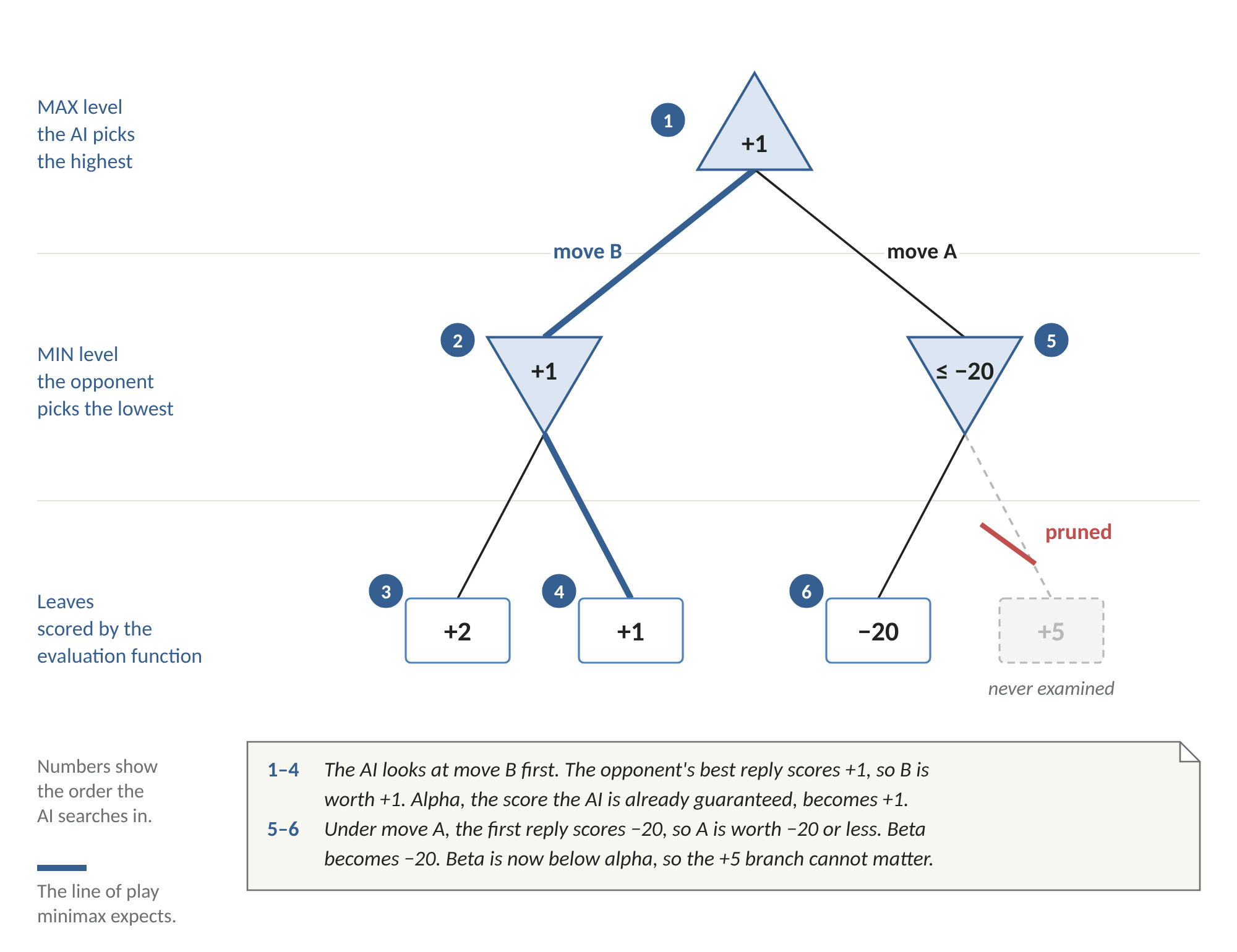
Figure 5: Minimax game tree for the worked example, showing the branch that alpha-beta pruning skips.
Three levels of strength
Difficulty is controlled by two settings for each level.
| Level | Depth | Chance of a random move |
|---|---|---|
| Low | 2 | 35 per cent |
| Medium | 4 | 10 per cent |
| High | 7 | None |
The random move makes the lower levels feel more human: usually sensible, sometimes careless. The deeper search makes the High level see traps several moves before they happen.
We measured the levels by letting them play each other on the computer used to write this course. High beat Medium in all 8 games played. Medium beat Low in 18 of 20 games, lost 1 and drew 1. High took a median of 60 milliseconds to choose a move, and its slowest move took 407 milliseconds. A phone is slower than that computer, so expect High to pause for a moment before it moves.
Teacher's note: We tried a depth of 8 for High first. Its slowest move took over two seconds on the test computer, which would feel sluggish on a phone. Choosing the depth is a trade-off between strength and waiting time, and measuring is the only reliable way to make that choice.
Variety
If several moves score exactly the same, the AI picks one of them at random. Without this, the computer would play the same game every time.
The listing
Create static/js/ai.js.
File: static/js/ai.js
/*
 * ai.js - the computer opponent.
 *
 * The AI uses MINIMAX search with ALPHA-BETA PRUNING, a classic open technique
 * used in game-playing programs since the 1950s. It works like this:
 *
 *   1. List every legal move.
 *   2. For each move, imagine the opponent's best reply, then our best reply
 *      to that, and so on, to a fixed number of moves ahead (the "depth").
 *   3. At the end of each imagined line, score the position with an
 *      EVALUATION function (roughly: who has more pieces, and better ones).
 *   4. Assume both sides always pick their best option, and choose the move
 *      that leads to the best guaranteed score for us.
 *
 * Alpha-beta pruning skips lines that cannot change the decision, so the AI
 * can look further ahead in the same time.
 *
 * Difficulty is set by how far ahead the AI looks and how often it makes a
 * deliberately random move.
 */

// In the browser Rules is a global from rules.js; in Node we load it.
const RulesLib = (typeof Rules !== 'undefined') ? Rules : require('./rules.js');

const AI = (function () {
  const LEVELS = {
    easy:   { depth: 2, randomChance: 0.35 },
    medium: { depth: 4, randomChance: 0.10 },
    hard:   { depth: 7, randomChance: 0 }
  };

  const WIN_SCORE = 100000;

  /*
   * Score a position from the point of view of `player`.
   * Positive = good for `player`, negative = good for the opponent.
   */
  function evaluate(board, player) {
    let score = 0;
    for (let r = 0; r < 8; r++) {
      for (let c = 0; c < 8; c++) {
        const p = board[r][c];
        if (p === '.') continue;
        let value;
        if (RulesLib.isKing(p)) {
          value = 175;
        } else {
          // Men are worth more the closer they are to being crowned.
          const advance = (p === 'b') ? (7 - r) : r;
          value = 100 + advance * 3;
          // Men on the back row guard against the opponent crowning.
          if ((p === 'b' && r === 7) || (p === 'w' && r === 0)) value += 6;
        }
        // Small bonus for the centre of the board, where pieces are flexible.
        if (r >= 2 && r <= 5 && c >= 2 && c <= 5) value += 4;
        score += RulesLib.ownerOf(p) === player ? value : -value;
      }
    }
    return score;
  }

  /*
   * Minimax with alpha-beta pruning.
   *   state      - the position to look at
   *   depth      - how many more moves to look ahead
   *   alpha/beta - the best scores already guaranteed to each side
   *   maximising - true when it is the AI's turn in this imagined line
   *   aiPlayer   - 'b' or 'w', the side the AI plays
   */
  function minimax(state, depth, alpha, beta, maximising, aiPlayer, stats) {
    stats.nodes++;
    const moves = RulesLib.legalMoves(state);

    // No moves means the side to move has lost. Prefer quicker wins and
    // slower losses by adjusting the score with the remaining depth.
    if (moves.length === 0) {
      return maximising ? -WIN_SCORE - depth : WIN_SCORE + depth;
    }
    if (depth === 0) return evaluate(state.board, aiPlayer);

    if (maximising) {
      let best = -Infinity;
      for (const move of moves) {
        const child = RulesLib.applyMove(state, move);
        const score = minimax(child, depth - 1, alpha, beta, false, aiPlayer, stats);
        best = Math.max(best, score);
        alpha = Math.max(alpha, best);
        if (alpha >= beta) break; // the opponent would never allow this line
      }
      return best;
    } else {
      let best = Infinity;
      for (const move of moves) {
        const child = RulesLib.applyMove(state, move);
        const score = minimax(child, depth - 1, alpha, beta, true, aiPlayer, stats);
        best = Math.min(best, score);
        beta = Math.min(beta, best);
        if (alpha >= beta) break; // we would never allow this line
      }
      return best;
    }
  }

  // Pick a move for the side to move, at the given difficulty level.
  function chooseMove(state, level) {
    const settings = LEVELS[level] || LEVELS.medium;
    const moves = RulesLib.legalMoves(state);
    if (moves.length === 0) return null;
    if (moves.length === 1) return moves[0];

    // Easier levels sometimes play a random move, like a distracted human.
    if (Math.random() < settings.randomChance) {
      return moves[Math.floor(Math.random() * moves.length)];
    }

    const aiPlayer = state.turn;
    const stats = { nodes: 0 };
    let bestScore = -Infinity;
    let bestMoves = [];
    for (const move of moves) {
      // Passing (bestScore - 1) as alpha lets the search skip replies that
      // cannot beat or equal the best move found so far. Scores are whole
      // numbers, so moves that tie with the best are still recognised.
      const score = minimax(RulesLib.applyMove(state, move), settings.depth - 1,
                            bestScore - 1, Infinity, false, aiPlayer, stats);
      if (score > bestScore) { bestScore = score; bestMoves = [move]; }
      else if (score === bestScore) bestMoves.push(move);
    }
    // Several moves can score the same; choose one at random for variety.
    const choice = bestMoves[Math.floor(Math.random() * bestMoves.length)];
    choice.stats = { nodes: stats.nodes, score: bestScore };
    return choice;
  }

  return { LEVELS, evaluate, chooseMove };
})();

if (typeof module !== 'undefined') module.exports = AI;
Check your progress
Again, there is nothing new on screen yet. With Node.js you can ask the AI for an opening move. In the terminal, run node, then type the lines below. You will see the path of the move the AI chose, as row and column numbers.
const Rules = require('./static/js/rules.js');
const AI = require('./static/js/ai.js');
AI.chooseMove(Rules.newGame(), 'hard').path
Module 8: Bringing It Together
main.js is the conductor of the orchestra. It does not know the rules and it does not think about moves. It asks rules.js and ai.js for answers and turns them into things the player can see and touch.
Game state
At the top are a handful of variables that describe what is happening right now: the current position, who the players are, which piece is selected, the last move played, whether the game is finished and whether the computer is thinking. Every other part of the file reads or changes these.
The start dialog
When the page loads, the setup dialog opens. When the player changes between one and two players, a small piece of code shows or hides the second name box and the strength choice. When the player presses Play, the code reads the form, saves the player's name on their own device using localStorage so it is filled in next time, and starts a game.
Taking turns
nextTurn runs after every move. It first asks the rules whether the game is over. If not, it checks whose turn it is. If a human is to move, it updates the status line, and tells the player when a capture is compulsory. If the computer is to move, it shows "thinking", waits a third of a second so the message appears, and then asks the AI for its move.
Tapping to move
On a phone there is no mouse to drag pieces, so the game uses taps. The player taps a piece to select it, and small markers appear on the squares it can move to. Tapping a marker plays the move.
Multi-jumps need extra care. After the first jump of a multi-jump, the piece moves to its landing square and new markers appear for the next jump. The player cannot cancel part-way through, because the rules say a capture sequence must be completed. The code keeps a list of the squares tapped so far, and only completes the move when the tapped squares match one full legal move.
The game as a state machine
All of this behaviour can be summarised in a UML state machine diagram. A state is a situation the page can be in, such as "Piece selected". A transition is an arrow from one state to another, labelled with the event that causes it, such as a tap. Text in square brackets is a guard, a condition that must be true for the transition to happen. Text after a slash is an action the code carries out. The diamond is a choice: here it is the nextTurn function, which decides where to go after every move.
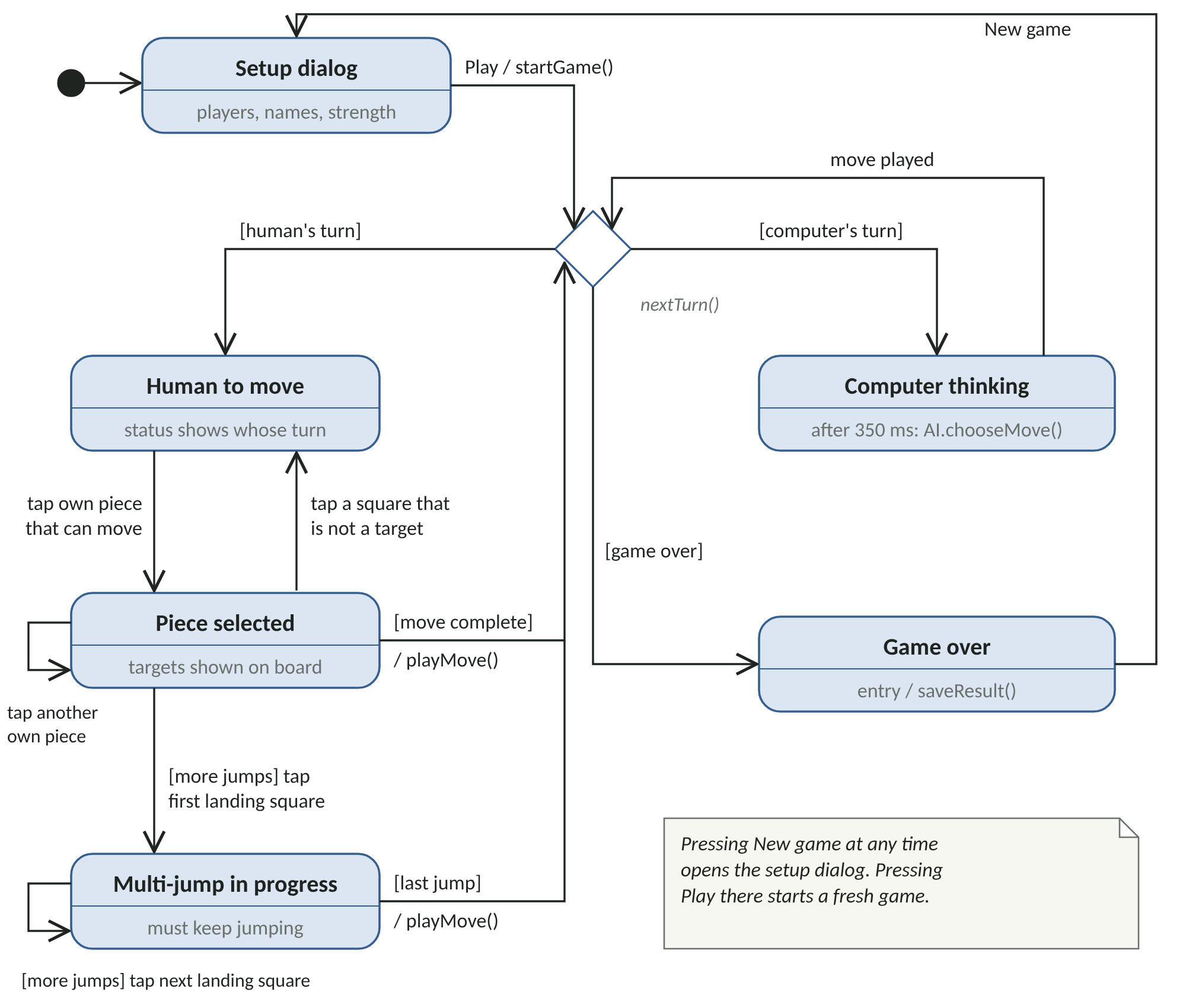
Figure 6: UML state machine diagram of the game page.
Use Figure 6 to test your understanding of main.js. Pick any state, then find the lines of code that handle each arrow leaving it.
Drawing the board
render rebuilds the whole board every time something changes. It creates sixty-four squares, colours the dark ones, adds pieces, adds markers on possible destinations, and highlights the squares used by the last move. Rebuilding everything each time is simpler than updating individual squares, and on a board this small it is fast enough.
Talking to the server
saveResult sends the finished game to the server, and loadScores asks the server for today's table and draws it. Both use fetch, the browser's built-in way to send requests. The addresses are written as api/scores with no leading slash, so the game still works if it is installed in a folder on the server rather than at the top level.
Notice that the scoreboard puts names on the page using textContent, never innerHTML. That means if someone types a name that looks like code, the browser shows it as plain text rather than running it. This is a basic but important security habit.
The listing
Create static/js/main.js.
File: static/js/main.js
/*
 * main.js - connects the rules and the AI to the web page.
 *
 * It draws the board, reacts to taps and clicks, asks the AI for its move,
 * and sends finished results to the server's scoreboard.
 */

// ---------- Game settings and state ----------
const LEVEL_NAMES = { easy: 'Low', medium: 'Medium', hard: 'High' };

let game = null;         // the current position, from Rules.newGame()
let players = null;      // { b: {name, human}, w: {name, human}, level }
let selected = null;     // { from, steps } while a move is being chosen
let lastMove = null;     // the previous move, highlighted on the board
let finished = false;    // true once the game has a result
let aiThinking = false;  // true while the computer is choosing

// ---------- Page elements ----------
const boardEl = document.getElementById('board');
const statusEl = document.getElementById('status');
const setupDialog = document.getElementById('setup');
const setupForm = document.getElementById('setupForm');

// ---------- Starting a game ----------
function showSetup() {
  setupDialog.showModal();
}

// Show or hide the second-name box and difficulty choice when the mode changes.
setupForm.addEventListener('change', () => {
  const twoPlayer = setupForm.mode.value === '2';
  document.getElementById('whiteField').hidden = !twoPlayer;
  document.getElementById('levelField').hidden = twoPlayer;
  document.getElementById('nameWhite').required = twoPlayer;
});

setupForm.addEventListener('submit', () => {
  const twoPlayer = setupForm.mode.value === '2';
  const level = setupForm.level.value;
  const blackName = setupForm.nameBlack.value.trim();
  const whiteName = twoPlayer ? setupForm.nameWhite.value.trim()
                              : 'Computer (' + LEVEL_NAMES[level] + ')';
  // Remember the name on this device so it is filled in next time.
  try {
    localStorage.setItem('draughtsName', blackName);
  } catch (e) { /* storage may be blocked */ }

  players = {
    b: { name: blackName, human: true },
    w: { name: whiteName, human: twoPlayer },
    level: level,
    mode: twoPlayer ? '2p' : '1p'
  };
  startGame();
});

function startGame() {
  game = Rules.newGame();
  selected = null;
  lastMove = null;
  finished = false;
  aiThinking = false;
  document.getElementById('blackName').textContent = players.b.name;
  document.getElementById('whiteName').textContent = players.w.name;
  render();
  nextTurn();
}

// ---------- Turns ----------
function nextTurn() {
  const outcome = Rules.result(game);
  if (outcome) return endGame(outcome);

  const mover = players[game.turn];
  if (mover.human) {
    const mustCapture = Rules.legalMoves(game)[0].captures.length > 0;
    setStatus(mover.name + ' to move' + (mustCapture ? ' - you must capture.' : '.'));
  } else {
    aiThinking = true;
    setStatus(mover.name + ' is thinking...');
    // Wait a moment so the page can show the message before the AI starts working.
    setTimeout(() => {
      const move = AI.chooseMove(game, players.level);
      aiThinking = false;
      playMove(move);
    }, 350);
  }
}

function playMove(move) {
  game = Rules.applyMove(game, move);
  lastMove = move;
  selected = null;
  render();
  nextTurn();
}

function endGame(outcome) {
  finished = true;
  let text;
  if (outcome.winner === 'draw') text = 'Draw: ' + outcome.reason + '.';
  else text = players[outcome.winner].name + ' wins (' + outcome.reason + ').';
  setStatus(text + ' Tap New game to play again.');
  saveResult(outcome.winner);
}

// ---------- Choosing a move by tapping ----------
// Moves that match the piece and the squares chosen so far.
function candidateMoves() {
  if (!selected) return [];
  return Rules.legalMoves(game).filter(m => {
    if (!same(m.path[0], selected.from)) return false;
    for (let i = 0; i < selected.steps.length; i++) {
      if (!m.path[i + 1] || !same(m.path[i + 1], selected.steps[i])) return false;
    }
    return true;
  });
}

function onSquareTap(r, c) {
  if (finished || aiThinking || !players || !players[game.turn].human) return;
  const piece = game.board[r][c];

  // Tapping one of your own pieces (before a multi-jump has begun) selects it.
  if (Rules.ownerOf(piece) === game.turn && (!selected || selected.steps.length === 0)) {
    const hasMoves = Rules.legalMoves(game).some(m => same(m.path[0], [r, c]));
    if (hasMoves) {
      selected = { from: [r, c], steps: [] };
    } else {
      selected = null;
      const mustCapture = Rules.legalMoves(game)[0].captures.length > 0;
      setStatus(mustCapture ? 'You must capture with another piece.'
                            : 'That piece cannot move.');
    }
    return render();
  }

  if (!selected) return;

  // Is the tapped square the next square of any legal move?
  const depth = selected.steps.length + 1;
  const matching = candidateMoves().filter(m => m.path[depth] && same(m.path[depth], [r, c]));
  if (matching.length === 0) {
    // During a multi-jump the player must continue; otherwise cancel the selection.
    if (selected.steps.length === 0) selected = null;
    return render();
  }

  selected.steps.push([r, c]);
  const complete = matching.find(m => m.path.length === depth + 1);
  if (complete) return playMove(complete);
  setStatus('Keep jumping.');
  render();
}

// ---------- Drawing the board ----------
// While a multi-jump is part-way through, show the piece where it has got to.
function displayBoard() {
  if (!selected || selected.steps.length === 0) return game.board;
  const board = Rules.copyBoard(game.board);
  const move = candidateMoves()[0];
  const [fr, fc] = selected.from;
  const [tr, tc] = selected.steps[selected.steps.length - 1];
  board[tr][tc] = board[fr][fc];
  board[fr][fc] = '.';
  for (let i = 0; i < selected.steps.length; i++) {
    const [cr, cc] = move.captures[i];
    board[cr][cc] = '.';
  }
  return board;
}

function render() {
  const board = displayBoard();
  const targets = new Set();
  if (selected) {
    const depth = selected.steps.length + 1;
    for (const m of candidateMoves()) if (m.path[depth]) targets.add(key(m.path[depth]));
  }
  const lastSquares = new Set(lastMove ? lastMove.path.map(key) : []);
  const pieceAt = selected
    ? key(selected.steps.length ? selected.steps[selected.steps.length - 1] : selected.from)
    : null;

  boardEl.innerHTML = '';
  for (let r = 0; r < 8; r++) {
    for (let c = 0; c < 8; c++) {
      const sq = document.createElement('div');
      sq.className = 'sq' + ((r + c) % 2 === 1 ? ' dark' : '');
      if (targets.has(key([r, c]))) sq.classList.add('target');
      if (lastSquares.has(key([r, c]))) sq.classList.add('last');
      const p = board[r][c];
      if (p !== '.') {
        const pieceEl = document.createElement('div');
        pieceEl.className = 'piece ' + Rules.ownerOf(p) + (Rules.isKing(p) ? ' king' : '');
        if (pieceAt === key([r, c])) pieceEl.classList.add('selected');
        sq.appendChild(pieceEl);
      }
      sq.addEventListener('click', () => onSquareTap(r, c));
      boardEl.appendChild(sq);
    }
  }

  const n = Rules.countPieces(game.board);
  document.getElementById('blackCount').textContent = (n.b + n.B) + ' pieces';
  document.getElementById('whiteCount').textContent = (n.w + n.W) + ' pieces';
}

// ---------- Talking to the server ----------
// The URLs have no leading slash, so the game works in any folder on the server.
async function saveResult(winner) {
  try {
    await fetch('api/scores', {
      method: 'POST',
      headers: { 'Content-Type': 'application/json' },
      body: JSON.stringify({ black: players.b.name, white: players.w.name, winner: winner })
    });
  } catch (e) {
    console.warn('Could not save the result', e);
  }
  loadScores();
}

async function loadScores() {
  const rowsEl = document.getElementById('scoreRows');
  try {
    const response = await fetch('api/scores');
    const data = await response.json();
    if (data.table.length === 0) return;
    rowsEl.innerHTML = '';
    for (const row of data.table) {
      const tr = document.createElement('tr');
      for (const value of [row.name, row.played, row.won, row.drawn, row.lost, row.points]) {
        const td = document.createElement('td');
        td.textContent = value; // textContent is safe: names are never treated as HTML
        tr.appendChild(td);
      }
      rowsEl.appendChild(tr);
    }
  } catch (e) {
    rowsEl.innerHTML = '<tr><td colspan="6" class="muted">Scoreboard unavailable.</td></tr>';
  }
}

// ---------- Small helpers ----------
function same(a, b) { return a[0] === b[0] && a[1] === b[1]; }
function key(sq) { return sq[0] + ',' + sq[1]; }
function setStatus(text) { statusEl.textContent = text; }

// ---------- Start up ----------
document.getElementById('newGameBtn').addEventListener('click', showSetup);
try {
  setupForm.nameBlack.value = localStorage.getItem('draughtsName') || '';
} catch (e) { /* ignore */ }
game = Rules.newGame();
render();
loadScores();
showSetup();
Check your progress
The game will not run properly by double-clicking the file, because the scoreboard needs the server. Continue to the next module, where you will start the server and play your first game.
Module 9: The Daily Scoreboard (Python and Flask)
Why there is no database
A database is the right tool when you have a lot of data, many people changing it at once, or complicated questions to ask of it. Our scoreboard has a few dozen results a day and one simple question: who has the most points today? A small text file is easier to understand, easier to back up and needs nothing extra installed. The AI does not need a database either, because it works everything out from the current position each time.
How the scoreboard works
Each day gets its own file in the data folder, named after the date, such as scores-2026-10-27.json. JSON is a plain-text format for data that both Python and JavaScript understand. Each file is a list of games, and each game records the Black player's name, the White player's name and the winner.
When a new day starts, the server looks for a file with the new date, does not find one, and so shows an empty scoreboard. Nothing has to be deleted or reset. The old files stay in the folder as a record.
The league table is worked out from the list each time it is requested: three points for a win, one for a draw. Computer players appear in the table too, under names such as "Computer (High)", so players can see how they compare with each level.
The routes
A route connects a web address to a Python function. Our app has three.
| Address | Method | What it does |
|---|---|---|
| / | GET | Sends the game page |
| /api/scores | GET | Sends today's league table as JSON |
| /api/scores | POST | Accepts one finished game, saves it and sends back the new table |
Never trust the browser
Anyone can send a request to your server, not only your game. So the server checks everything it receives. Names must be between one and twenty characters and may only contain letters, numbers, spaces and a few simple symbols. The winner must be exactly "b", "w" or "draw". Anything else is refused with an error code of 400, which means "bad request".
Two people finishing at once
If two games end at the same moment, both requests could try to rewrite the file together and one result could be lost. The code prevents this with a file lock: the first request locks the file, makes its change and unlocks it, and the second request waits its turn. File locking is available on Linux and macOS, which includes your Apache server. On Windows the code simply skips the lock during development.
Figure 7 is a UML activity diagram of everything that happens when a result arrives. Start at the black dot at the top and follow the arrows. Rounded boxes are actions, diamonds are decisions, and the label on each arrow leaving a decision says which way to go. The circled dots are the two ways the activity can end. The red dashed outline marks the steps that happen while the file is locked.
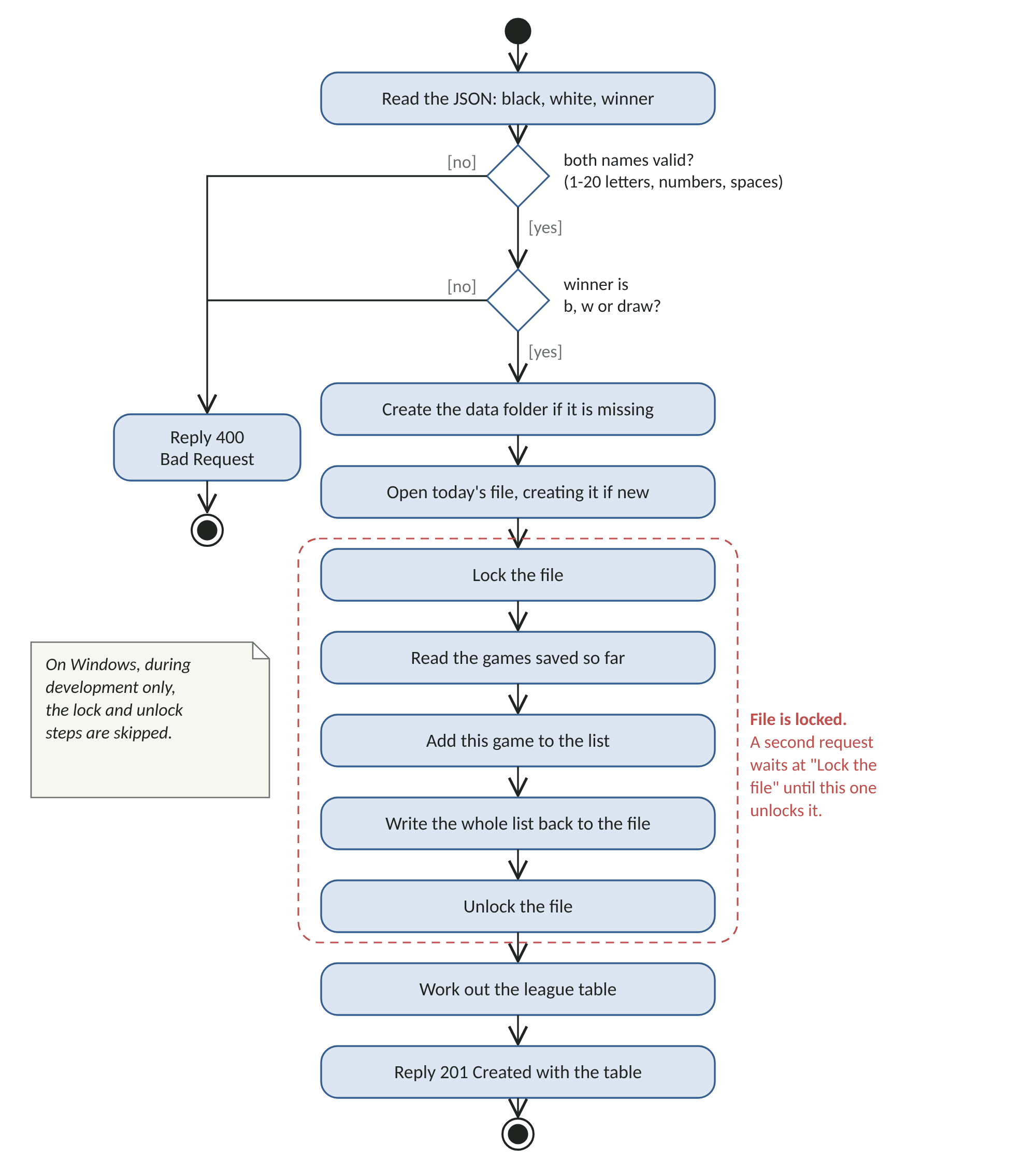
Figure 7: UML activity diagram of saving a result.
The listings
Create app.py in the top level of the project.
File: app.py
"""
app.py - the small Python web application behind the game.

It does two jobs:
  1. Sends the game files (HTML, CSS, JavaScript) to the browser.
  2. Keeps today's scoreboard in a JSON file. A new file starts each day,
     so the scoreboard resets at midnight (server time). No database is needed.
"""

import json
import os
import re
from datetime import date

from flask import Flask, jsonify, request

# fcntl provides file locking, so two results saved at the same moment cannot
# overwrite each other. It exists on Linux and macOS (and so on the Apache
# server) but not on Windows, where we simply skip the lock during development.
try:
    import fcntl
except ImportError:
    fcntl = None

BASE_DIR = os.path.dirname(os.path.abspath(__file__))
DATA_DIR = os.path.join(BASE_DIR, "data")

# static_url_path="" serves static/index.html at "/" and static/js/... at "/js/...".
app = Flask(__name__, static_folder="static", static_url_path="")

# Names may contain letters, numbers, spaces and a few common symbols.
NAME_PATTERN = re.compile(r"^[\w .'()\-]{1,20}$", re.UNICODE)


def today_file():
    """Path of the JSON file holding today's games, e.g. data/scores-2026-10-27.json"""
    return os.path.join(DATA_DIR, f"scores-{date.today().isoformat()}.json")


def read_games():
    path = today_file()
    if not os.path.exists(path):
        return []
    with open(path, encoding="utf-8") as f:
        return json.load(f)


def build_table(games):
    """Turn the list of games into a league table: win 3 points, draw 1."""
    table = {}
    for g in games:
        for colour, name in (("b", g["black"]), ("w", g["white"])):
            row = table.setdefault(name, {"name": name, "played": 0, "won": 0,
                                          "drawn": 0, "lost": 0, "points": 0})
            row["played"] += 1
            if g["winner"] == "draw":
                row["drawn"] += 1
                row["points"] += 1
            elif g["winner"] == colour:
                row["won"] += 1
                row["points"] += 3
            else:
                row["lost"] += 1
    # Highest points first, then most wins, then name in alphabetical order.
    return sorted(table.values(), key=lambda r: (-r["points"], -r["won"], r["name"].lower()))


@app.route("/")
def index():
    return app.send_static_file("index.html")


@app.get("/api/scores")
def get_scores():
    return jsonify({"date": date.today().isoformat(), "table": build_table(read_games())})


@app.post("/api/scores")
def add_score():
    data = request.get_json(silent=True) or {}
    black = str(data.get("black", "")).strip()
    white = str(data.get("white", "")).strip()
    winner = data.get("winner")

    # Never trust what the browser sends: check every value.
    if not NAME_PATTERN.match(black) or not NAME_PATTERN.match(white):
        return jsonify({"error": "Names must be 1-20 letters, numbers or spaces."}), 400
    if winner not in ("b", "w", "draw"):
        return jsonify({"error": "winner must be 'b', 'w' or 'draw'."}), 400

    os.makedirs(DATA_DIR, exist_ok=True)
    path = today_file()
    # Open (or create) the file and lock it while we read, add and write.
    with open(path, "a+", encoding="utf-8") as f:
        if fcntl:
            fcntl.flock(f, fcntl.LOCK_EX)
        f.seek(0)
        text = f.read()
        games = json.loads(text) if text.strip() else []
        games.append({"black": black, "white": white, "winner": winner})
        f.seek(0)
        f.truncate()
        json.dump(games, f, indent=1)
        if fcntl:
            fcntl.flock(f, fcntl.LOCK_UN)

    return jsonify({"ok": True, "table": build_table(games)}), 201


if __name__ == "__main__":
    # Development server for your own computer only. Apache runs the app in production.
    app.run(host="127.0.0.1", port=5000, debug=True)
Create draughts.wsgi next to it. You will not use this file until Module 11, but it belongs with the project.
File: draughts.wsgi
"""
draughts.wsgi - the entry point Apache's mod_wsgi uses to start the app.

mod_wsgi looks for a variable called `application` in this file.
"""
import sys
import os

# Make sure Python can find app.py, which sits next to this file.
sys.path.insert(0, os.path.dirname(os.path.abspath(__file__)))

from app import app as application  # noqa: E402
Run it
Make sure your terminal shows (venv), then start the server.
python app.pyYou will see a message that includes Running on http://127.0.0.1:5000. Open that address in your browser. Enter your name, choose one player and Low strength, and play a game.
Teacher's note: On a Mac, AirPlay Receiver uses port 5000. If Flask says the port is already in use, or the browser shows an error instead of the game, turn AirPlay Receiver off (on macOS 13 or later in System Settings, General, AirDrop and Handoff; on macOS 12 in System Preferences, Sharing), or change port=5000 to port=5001 in the last line of app.py and open http://127.0.0.1:5001 instead.
Testing on your phone
The development server only accepts connections from your own computer, for safety. To try the game on your phone while developing, connect your phone to the same Wi-Fi network as your computer and change the last line of app.py to use host="0.0.0.0". On a Mac, also change port=5000 to port=5001, because AirPlay Receiver already uses port 5000. Restart the server, then on your phone open http:// followed by your computer's local IP address and the port, such as :5000. Change the line back when you have finished. Never use the development server on the public internet.
To find your computer's local IP address on Windows, type ipconfig in the terminal and look for IPv4 Address. On a Mac, open System Settings, choose Wi-Fi, then Details next to your network, or type ipconfig getifaddr en0 in the terminal.
On Windows, the first time the server accepts connections from the network, Windows Security asks whether to allow Python. Allow it on private networks. If your Wi-Fi is set as a public network, the phone will not connect until you change it to private in Settings. On a Mac with the firewall turned on, allow Python to accept incoming connections when asked.
Most browsers can also pretend to be a phone. In Chrome or Edge, press F12 to open the developer tools and click the phone-and-tablet icon at the top. You can then choose a phone model and see the layout at that size.
Check your progress
You have played a full game in the browser, and when it ended your name and the computer's name appeared in the scoreboard. A file with today's date has appeared in the data folder. Open it in VS Code to see what was saved.
Module 10: Testing
Why we write tests
A test is a small program that checks another program. Tests take a few minutes to write, and then they can check your work in seconds every time you change something. They are especially valuable for the rules, where a mistake might only show up in a rare position that you would never think to set up by hand.
Testing the rules and the AI
The rules tests build small positions from a picture made of text, using the same characters as the board, and then check what the rules say about them. For example, one test places a Black man next to a White man and checks that capturing is the only legal move. The last test plays a full game between the High and Low levels and checks that High wins.
Create tests/test_rules.js, then run it with Node.js.
File: tests/test_rules.js
// Run with:  node tests/test_rules.js
// Checks the rules and the AI using Node's built-in test runner.
const test = require('node:test');
const assert = require('node:assert');
const Rules = require('../static/js/rules.js');
const AI = require('../static/js/ai.js');

// Build a position from a picture. Each string is one row, top to bottom.
function position(rows, turn) {
  return { board: rows.map(r => r.split('')), turn, quietPlies: 0 };
}
const EMPTY = '........';

test('opening position has 12 pieces each and 7 moves for Black', () => {
  const g = Rules.newGame();
  const n = Rules.countPieces(g.board);
  assert.strictEqual(n.b, 12);
  assert.strictEqual(n.w, 12);
  assert.strictEqual(Rules.legalMoves(g).length, 7);
});

test('captures are compulsory', () => {
  const g = position([EMPTY, EMPTY, EMPTY, EMPTY, '...w....', '..b.....', EMPTY, '......b.'], 'b');
  const moves = Rules.legalMoves(g);
  assert.strictEqual(moves.length, 1);
  assert.deepStrictEqual(moves[0].captures, [[4, 3]]);
});

test('a multi-jump must be completed', () => {
  const g = position([EMPTY, EMPTY, '...w....', EMPTY, '.w......', 'b.......', EMPTY, EMPTY], 'b');
  const moves = Rules.legalMoves(g);
  assert.strictEqual(moves.length, 1);
  assert.strictEqual(moves[0].captures.length, 2);
  assert.deepStrictEqual(moves[0].path[2], [1, 4]);
});

test('a man reaching the far row becomes a king', () => {
  const g = position(['........', '..b.....', EMPTY, EMPTY, EMPTY, EMPTY, EMPTY, '.....w..'], 'b');
  const move = Rules.legalMoves(g).find(m => m.path[1][0] === 0);
  const after = Rules.applyMove(g, move);
  assert.ok(Rules.isKing(after.board[0][move.path[1][1]]));
});

test('men cannot move backwards but kings can', () => {
  const man = position([EMPTY, EMPTY, EMPTY, '....b...', EMPTY, EMPTY, EMPTY, '.w......'], 'b');
  assert.ok(Rules.legalMoves(man).every(m => m.path[1][0] < 3));
  const king = position([EMPTY, EMPTY, EMPTY, '....B...', EMPTY, EMPTY, EMPTY, '.w......'], 'b');
  assert.strictEqual(Rules.legalMoves(king).length, 4);
});

test('a player with no moves loses', () => {
  const g = position([EMPTY, EMPTY, EMPTY, EMPTY, EMPTY, EMPTY, EMPTY, '.w......'], 'b');
  assert.deepStrictEqual(Rules.result(g).winner, 'w');
});

test('the AI plays the forced capture at every level', () => {
  for (const level of ['easy', 'medium', 'hard']) {
    AI.LEVELS[level].randomChance = 0; // switch off random moves for this test
    const g = position([EMPTY, EMPTY, EMPTY, '..w.....', '.b......', EMPTY, '...b....', '.w......'], 'w');
    // White must capture, so every level should return a capture.
    const move = AI.chooseMove(g, level);
    assert.ok(move.captures.length > 0, level);
  }
});

test('the High AI beats the Low AI', () => {
  AI.LEVELS.easy.randomChance = 0.35;
  let g = Rules.newGame();
  let outcome;
  while (!(outcome = Rules.result(g))) {
    g = Rules.applyMove(g, AI.chooseMove(g, g.turn === 'b' ? 'hard' : 'easy'));
  }
  assert.strictEqual(outcome.winner, 'b');
});
node tests/test_rules.js
At the end of the output you should see # pass 8 and # fail 0.
Testing the scoreboard
Flask provides a test client, which sends pretend requests to the app without starting a real server. The tests use a temporary folder so that they never touch your real results.
Create tests/test_app.py and run it.
File: tests/test_app.py
"""Run with:  python -m pytest tests   (or: python tests/test_app.py)"""
import os
import sys
import tempfile

sys.path.insert(0, os.path.dirname(os.path.dirname(os.path.abspath(__file__))))
import app as server  # noqa: E402


def make_client():
    server.DATA_DIR = tempfile.mkdtemp()  # use a throwaway folder, not the real scores
    return server.app.test_client()


def test_empty_scoreboard():
    client = make_client()
    data = client.get("/api/scores").get_json()
    assert data["table"] == []


def test_results_build_a_table():
    client = make_client()
    client.post("/api/scores", json={"black": "Ann", "white": "Computer (High)", "winner": "w"})
    client.post("/api/scores", json={"black": "Ann", "white": "Bob", "winner": "b"})
    client.post("/api/scores", json={"black": "Bob", "white": "Ann", "winner": "draw"})
    table = client.get("/api/scores").get_json()["table"]
    ann = next(r for r in table if r["name"] == "Ann")
    record = (ann["played"], ann["won"], ann["drawn"], ann["lost"], ann["points"])
    assert record == (3, 1, 1, 1, 4)
    assert table[0]["name"] == "Ann"


def test_bad_input_is_rejected():
    client = make_client()
    bad = [
        {"black": "", "white": "Bob", "winner": "b"},          # empty name
        {"black": "<script>", "white": "Bob", "winner": "b"},  # symbols not allowed
        {"black": "Ann", "white": "Bob", "winner": "x"},       # unknown result
    ]
    for body in bad:
        assert client.post("/api/scores", json=body).status_code == 400


def test_home_page_is_served():
    client = make_client()
    assert b"Draughts" in client.get("/").data


if __name__ == "__main__":
    for name, fn in list(globals().items()):
        if name.startswith("test_"):
            fn()
            print("passed", name)
python tests/test_app.py
You should see four lines, each starting with passed.
Testing by hand
Automatic tests do not tell you whether the game feels right. Before you deploy, play at least one game at each strength, play one two-player game, try a multi-jump, and check the layout on a real phone held upright and sideways.
Check your progress
Both test files pass, and you have played every game type by hand.
Module 11: Publishing on Apache2
This module moves your game from your computer to a real web server so that anyone can play it. Your server is already set up, but the first section explains how to set one up from scratch, so that you can repeat the process on a new machine.
Commands in this module are typed into a terminal on the server, which you reach with SSH (secure shell). Commands starting with sudo run with administrator rights and will ask for your password.
Figure 8 is a map of this module, drawn as a UML activity diagram. Each box is one part, and each diamond is a check. Keep it open while you work: when a check fails, the arrows show which step to return to.
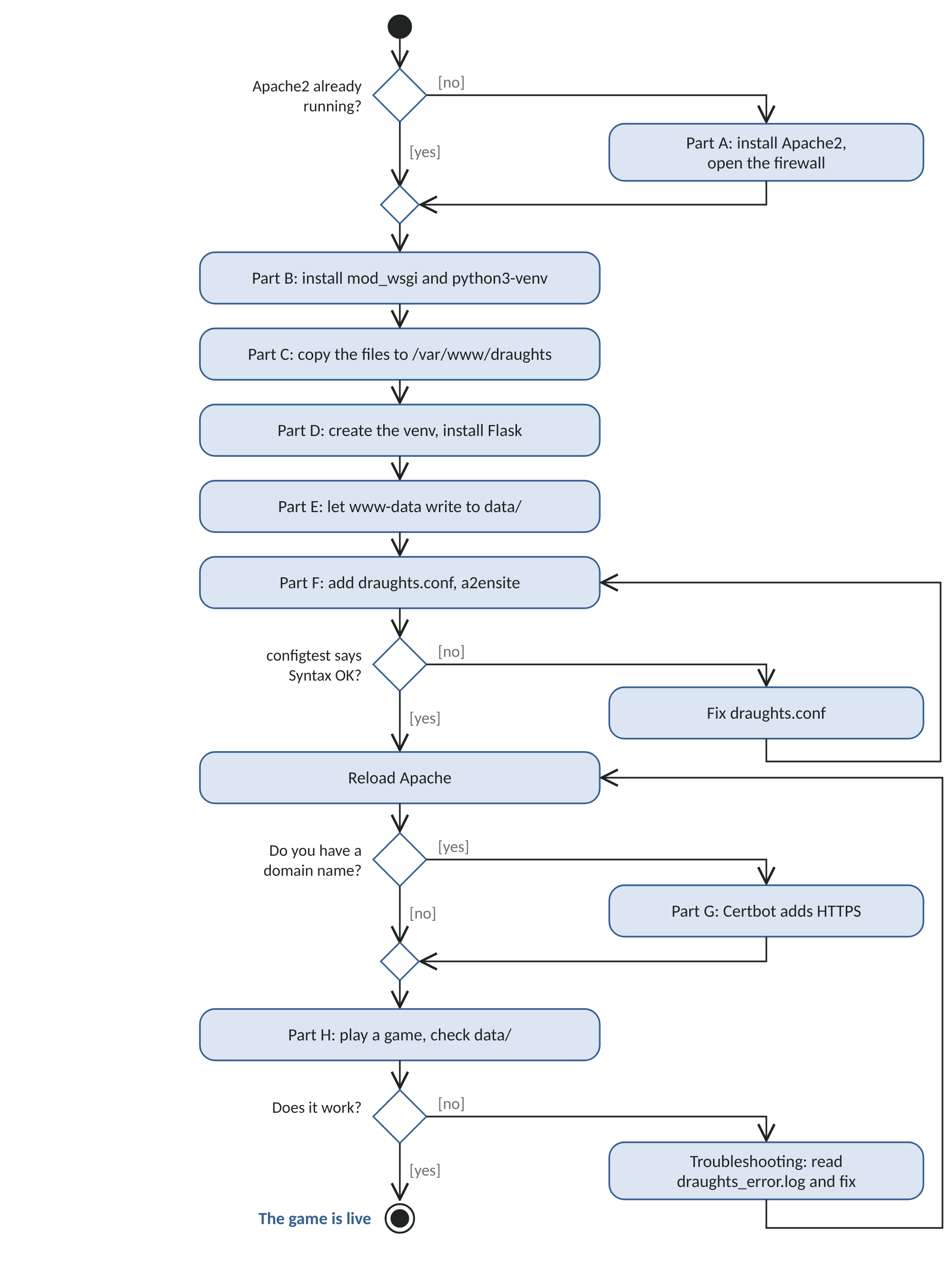
Figure 8: The deployment steps in Module 11, as a UML activity diagram.
Part A: Setting up Apache2 on a new Ubuntu server
Skip this part if Apache2 is already running on your server.
Update the list of available software:
sudo apt updateInstall Apache2:
sudo apt install apache2If the firewall is turned on, allow web traffic:
sudo ufw allow 'Apache Full'Check that Apache is running:
sudo systemctl status apache2. Look for the words "active (running)"Open
http://followed by your server's IP address in a browser. You should see the Apache2 Ubuntu Default Page
Part B: Installing the Python connector
Apache does not understand Python by itself. mod_wsgi is an Apache module that lets Apache run Python web applications. Install it, together with the tool for making virtual environments.
sudo apt install libapache2-mod-wsgi-py3 python3-venv
sudo a2enmod wsgi
Part C: Copying the project to the server
The convention on Ubuntu is to keep websites in /var/www. Create a folder for the game and make yourself its owner so that you can copy files into it.
sudo mkdir -p /var/www/draughts
sudo chown $USER:$USER /var/www/draughts
Now copy the project from your computer. Run the next command on your own computer, from inside the project folder, replacing you@your-server with your user name and server address. It copies the app files and the static folder, but not your local virtual environment or test results.
scp -r app.py draughts.wsgi requirements.txt static you@your-server:/var/www/draughts/Teacher's note: VS Code has an extension called Remote - SSH, published by Microsoft, that lets you open folders on your server as if they were on your own computer. Once you are comfortable with the steps in this module, it is a convenient alternative to copying files by hand.
Part D: Creating the virtual environment on the server
Back on the server, create a virtual environment inside the project folder and install Flask into it.
cd /var/www/draughts
python3 -m venv venv
venv/bin/pip install -r requirements.txt
Use the server's own python3 here. mod_wsgi was built for one particular version of Python, and the mod_wsgi documentation states that the virtual environment must be created from that same Python installation. We saw this go wrong while testing this course on a machine where python3 had been changed to a newer version: Apache replied with "500 Internal Server Error" and its error log said "No module named 'flask'". Recreating the virtual environment with the system Python fixed it.
Part E: Letting Apache save results
Apache runs as a user called www-data. That user needs permission to write the daily results files, and only those files.
mkdir -p /var/www/draughts/data
sudo chown www-data:www-data /var/www/draughts/data
Part F: Telling Apache about the site
Apache describes each website in a virtual host file. Create apache/draughts.conf in your project with the listing below, and change draughts.example.com to your own domain name. If you do not have a domain name yet, use your server's IP address.
File: apache/draughts.conf
# /etc/apache2/sites-available/draughts.conf
#
# Apache virtual host for the draughts game.
# Replace draughts.example.com with your own domain name or the server's IP address.

<VirtualHost *:80>
    ServerName draughts.example.com

    # Run the Flask app in its own group of processes, using the
    # project's virtual environment. The backslash continues the line.
    WSGIDaemonProcess draughts user=www-data group=www-data threads=5 \
        python-home=/var/www/draughts/venv python-path=/var/www/draughts
    WSGIProcessGroup draughts
    WSGIApplicationGroup %{GLOBAL}

    # Send every request for this site to the Flask app.
    WSGIScriptAlias / /var/www/draughts/draughts.wsgi

    <Directory /var/www/draughts>
        <Files draughts.wsgi>
            Require all granted
        </Files>
    </Directory>

    ErrorLog ${APACHE_LOG_DIR}/draughts_error.log
    CustomLog ${APACHE_LOG_DIR}/draughts_access.log combined
</VirtualHost>
The important lines are these.
WSGIDaemonProcessstarts a separate group of processes for the game, runs it aswww-data, and tells it where the virtual environment and the project files areWSGIScriptAlias /sends every request for the site todraughts.wsgi, which starts FlaskThe
<Directory>section gives Apache permission to use thedraughts.wsgifileErrorLognames the file where problems are written. This file is your best friend when something goes wrong
Copy the file to the server, switch the site on, check the settings and reload Apache.
sudo cp draughts.conf /etc/apache2/sites-available/
sudo a2ensite draughts
sudo apache2ctl configtest
sudo systemctl reload apache2
configtest must print Syntax OK before you reload. It may also print a warning containing "AH00558" about the server's name. That warning is harmless.
If this is the only website on the server, you can switch off the Apache default page with sudo a2dissite 000-default followed by another reload.
Part G: Adding HTTPS
Browsers mark plain http sites as "Not secure". If you have a domain name pointing at your server, the free Let's Encrypt service can add HTTPS for you, and the Certbot tool sets it up and renews it automatically.
sudo apt install certbot python3-certbot-apache
sudo certbot --apache
Answer the questions, choose your draughts domain from the list, and Certbot will update your Apache settings. HTTPS needs a real domain name; it cannot be added to a bare IP address this way.
Part H: Checking it works
Open your domain in a browser and on your phone. Play one game and check that it appears on the scoreboard. On the server, you should now see a results file for today.
ls -l /var/www/draughts/dataTroubleshooting
When something is wrong, read the error log first. The command below shows new lines as they are written. Reload the page in your browser while it is running, and press Ctrl and C to stop it.
sudo tail -f /var/log/apache2/draughts_error.log| What you see | Likely cause | What to do |
|---|---|---|
| 500 Internal Server Error and "No module named 'flask'" in the log | The virtual environment is missing or was made with the wrong Python | Repeat Part D using the server's own python3 |
| Game loads but scores never appear, "Permission denied" in the log | Apache cannot write to the data folder | Repeat Part E |
| 403 Forbidden | The Directory section is missing or the path is wrong | Check the paths in draughts.conf match /var/www/draughts |
| You still see the Apache default page | The default site is answering first | Check ServerName, or run sudo a2dissite 000-default and reload |
| Your changes do not appear | The old files are still in use | Copy the files again, then run sudo systemctl reload apache2 |
Updating the game later
To publish a change, copy the changed files to the server again with scp, then reload Apache. Your results files are not touched, because they live in the data folder, which you never copy over.
Check your progress
Your game is live at your own address, works on a phone, and records results on the server.
Module 12: Where to Go Next
Congratulations. You have built and published a complete web application with an AI opponent. Here are some ideas for taking it further, roughly in order of difficulty.
Play as White. Add a choice in the setup dialog and let the computer move first. You will need to think about whether to turn the board round
Move animation. Use a CSS transition so pieces slide rather than jump to their new square
Undo. Keep a list of previous game states, which is easy because
applyMovenever changes the old stateA smoother AI. Move the AI into a Web Worker, a browser feature that runs JavaScript in the background, so the page never pauses while the computer thinks
A weekly table. Add a route that reads the last seven daily files and combines them
A tuning experiment. Change the numbers in the evaluation function, then let the old and new versions play each other many times using Node.js. Keep whichever wins more often
AI commentary. Run a small open-source language model on your server and ask it to describe each game in a sentence. Keep minimax for choosing moves, and use the language model only for words
Known limitations
Every project makes trade-offs. These are the ones in this design, and you should be able to explain them.
The scoreboard can be faked. Because there are no accounts and the game runs in the browser, a determined person could send a made-up result to the server. For a friendly daily scoreboard this is acceptable. Preventing it would need the server to check every move, which is a good advanced project
Names are not unique. Two different people called Sam share one row in the table
Midnight is the server's midnight. The scoreboard resets at midnight in the server's time zone, which may not match every player's
Glossary of Terms
| Term | Meaning |
|---|---|
| Activity diagram | A UML diagram showing the steps of a process, its decisions and where it ends |
| AI (artificial intelligence) | Software that makes decisions that would normally need human thought. In this course, the computer opponent |
| Alpha-beta pruning | A shortcut for minimax that skips branches of the game tree that cannot change the final choice |
| Apache2 | Free, open-source web server software that receives requests from browsers and sends back responses |
| API | Application programming interface. Here, the addresses under api/ that the game uses to talk to the server |
| Artifact (UML) | A file that is part of a system, such as index.html or app.py |
| Back end | The part of a web application that runs on the server |
| Capture | Jumping over an opponent's piece to remove it from the board |
| Certbot | A tool that obtains and renews free HTTPS certificates from Let's Encrypt |
| Component (UML) | A part of a system that runs, such as rules.js or app.py |
| Component diagram | A UML diagram showing the parts of a system and which parts depend on which |
| CSS | Cascading Style Sheets. The language that describes how a web page looks |
| Deployment diagram | A UML diagram showing which software runs on which machine and how the machines connect |
| Depth | How many moves ahead the AI looks |
| Evaluation function | The rule of thumb the AI uses to score a position it cannot see to the end |
| Flask | A small Python toolkit for writing web applications |
| Front end | The part of a web application that runs in the visitor's browser |
| Game tree | Every possible sequence of moves from a position, drawn as a branching tree |
| GET and POST | The two kinds of request used in this course. GET asks for information; POST sends information |
| Guard | In a UML diagram, a condition in square brackets that must be true for a transition to happen |
| HTML | HyperText Markup Language. The language that describes the structure of a web page |
| HTTPS | The secure, encrypted version of HTTP, the language browsers and servers use to talk |
| Interface (UML) | A named point where one part of a system offers a service to another, drawn as a small circle |
| IP address | The number that identifies a computer on a network, used here to reach your computer from your phone |
| JavaScript | The programming language that runs inside web browsers |
| JSON | JavaScript Object Notation. A plain-text format for data that most languages can read |
| King | A piece that has reached the far side of the board and may move backwards as well as forwards |
| Lifeline | In a sequence diagram, the dashed line below a participant, showing it over time |
| localStorage | A small storage area in the browser, private to one site on one device |
| Man | An ordinary piece that has not yet become a king |
| Minimax | A search algorithm that chooses the move with the best guaranteed result, assuming the opponent also plays their best |
| mod_wsgi | An Apache module that lets Apache run Python web applications |
| Node (UML) | A machine or runtime that software runs on, such as a phone, a browser or a server |
| PATH | The list of folders a terminal searches when you type a command such as python |
| Port | A numbered point on a computer through which a program accepts connections. The development server uses port 5000 |
| Recursion | A function that calls itself to solve a smaller version of the same problem |
| Route | A link between a web address and the code that answers it |
| Sequence diagram | A UML diagram showing the messages between participants in time order |
| Server | A computer that answers requests from other computers over a network |
| SSH | Secure Shell. A way to type commands on a remote server securely |
| State machine diagram | A UML diagram showing the states something can be in and the events that move it between them |
| Terminal | A window where you type commands instead of clicking |
| UML | Unified Modeling Language. A standard set of drawing conventions for describing software |
| Viewport | The visible area of a web page on a screen |
| Virtual environment | A private copy of Python for one project, so its packages do not affect other projects |
| Virtual host | An Apache settings file that describes one website |
| VS Code | Visual Studio Code, the free code editor used in this course |
| WSGI | Web Server Gateway Interface. The standard way for Python web applications and web servers to connect |
Appendix: Sources
The following sources were used for the rules, the algorithm and the software instructions in this course. Version numbers and download pages change over time, so check the current page before installing anything.
| Topic | Source |
|---|---|
| UML | Object Management Group, UML specification: https://www.omg.org/spec/UML/ |
| Rules of English draughts | Wikipedia, "English draughts": https://en.wikipedia.org/wiki/English_draughts |
| Checkers solved by search | Schaeffer, J. et al. (2007) "Checkers is Solved", Science. Publication list: https://webdocs.cs.ualberta.ca/~chinook/publications/solving_checkers.html |
| Checkers solved, news report | Nature News, 19 July 2007: https://www.nature.com/news/2007/070716/full/news070716-13.html |
| Minimax | Wikipedia, "Minimax": https://en.wikipedia.org/wiki/Minimax |
| Alpha-beta pruning | Wikipedia, "Alpha–beta pruning": https://en.wikipedia.org/wiki/Alpha%E2%80%93beta_pruning |
| Visual Studio Code | https://code.visualstudio.com |
| Python downloads | https://www.python.org/downloads |
| Node.js downloads | https://nodejs.org |
| Flask documentation | https://flask.palletsprojects.com |
| Installing Apache on Ubuntu | Ubuntu tutorial, "Install and configure Apache": https://ubuntu.com/tutorials/install-and-configure-apache |
| mod_wsgi and virtual environments | mod_wsgi documentation: https://modwsgi.readthedocs.io/en/latest/user-guides/virtual-environments.html |
| mod_wsgi daemon process settings | mod_wsgi documentation, WSGIDaemonProcess: https://modwsgi.readthedocs.io/en/latest/configuration-directives/WSGIDaemonProcess.html |
| HTTPS with Certbot | Electronic Frontier Foundation, Certbot instructions: https://certbot.eff.org/instructions |
| Viewport meta tag | MDN Web Docs: https://developer.mozilla.org/en-US/docs/Web/HTML/Reference/Elements/meta/name/viewport |
| The dialog element | MDN Web Docs: https://developer.mozilla.org/en-US/docs/Web/HTML/Reference/Elements/dialog |
| Web Workers | MDN Web Docs: https://developer.mozilla.org/en-US/docs/Web/API/Web_Workers_API |
| Python install manager on Windows | Python documentation, Using Python on Windows: https://docs.python.org/3/using/windows.html |
| AirPlay Receiver using port 5000 on a Mac | Apple Developer Forums, Why is Control Center on Monterey listening on ports?: https://developer.apple.com/forums/thread/682332 |